 UnRepostAll
TikTok lets you remove a repost, but only one at a time. If your Reposts tab has hundreds of videos, that takes a long time. This guide shows the manual way and how to remove all your reposts at once.
Quick answer: TikTok can only remove reposts one at a time (Share → Remove repost). To remove all of them at once:
- Install UnRepostAll on iPhone, Android, Mac, or Windows.
- Tap Unrepost All. UnRepostAll removes them all.
In this guide
Why TikTok has no “remove all reposts” button
Every repost is its own action on a single video. TikTok gives you a Remove repost option on each video, but no way to select your whole Reposts tab and clear it. There’s also no setting that turns old reposts off in bulk. Reposts stay on your profile until you remove them one by one, or use a tool that does it for you.
How to remove one repost manually
- Open the video you reposted. You can find it in the Reposts tab on your profile (the icon with two arrows).
- Tap the Share arrow on the right side of the video.
- Tap Remove repost. The video disappears from your Reposts tab right away.
This works the same on iPhone and Android. On a computer, open the video on tiktok.com, click Share, then Remove repost. For a handful of reposts this is fine. For hundreds, it means opening every video. More detail in how to undo a repost on TikTok.
How to remove all your reposts at once
UnRepostAll is an app for iPhone, Android, Mac, and Windows that removes your TikTok reposts in bulk. Tap once and it removes your reposts one after another, showing each one as it goes. Pick your app for the steps:
On iPhone & Android
Step 1 Open UnRepostAll
Install UnRepostAll from the App Store or Google Play and open it. The app guides you through setup.
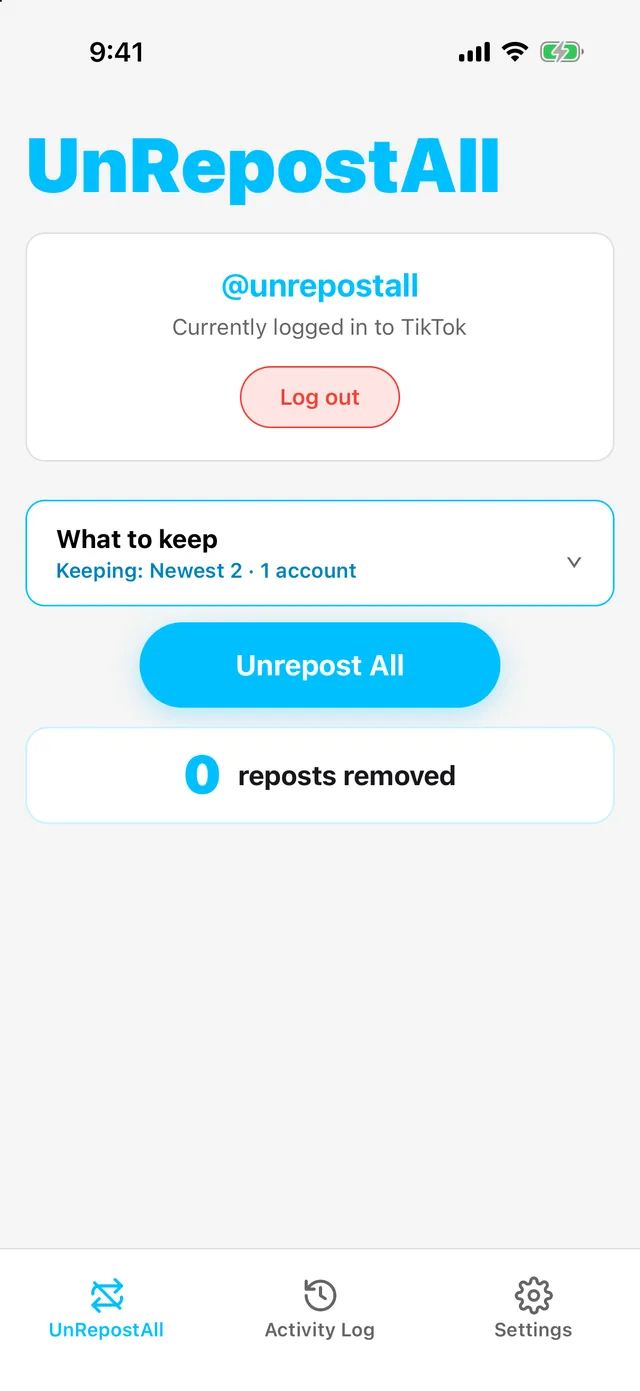
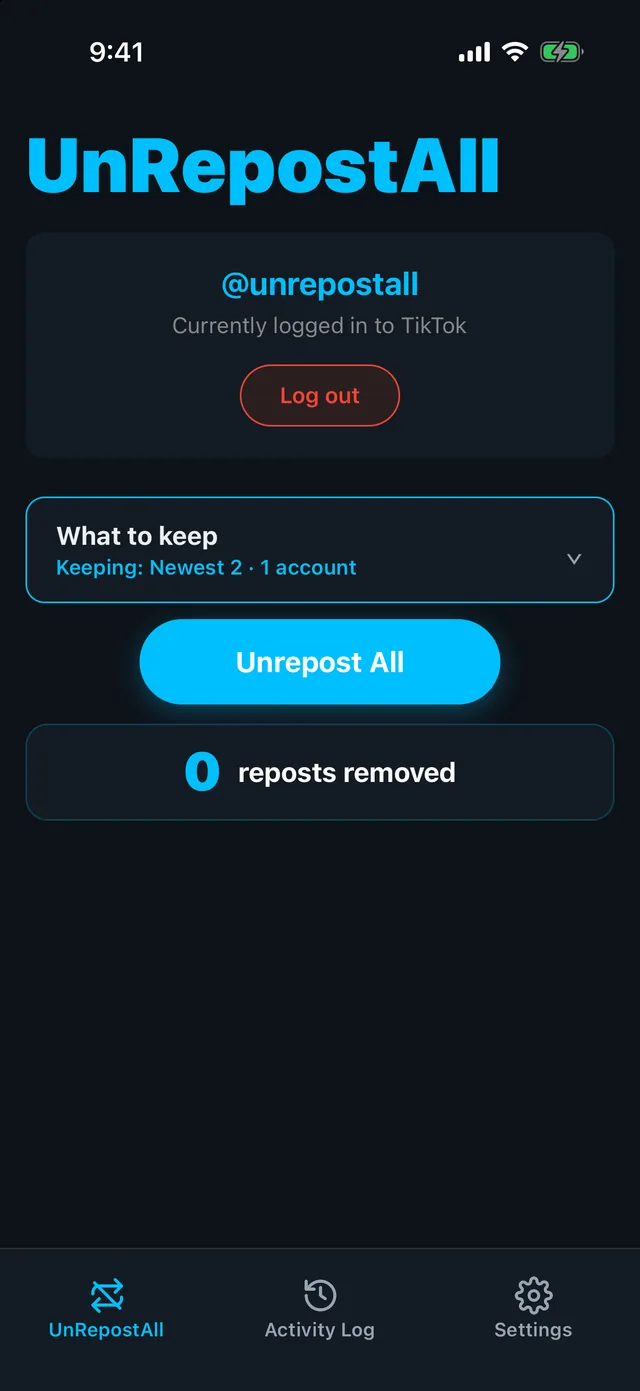
Step 2 Tap Unrepost All
Optional: tap What to keep first to keep your newest reposts or reposts from certain accounts.
UnRepostAll works through your Reposts tab and removes each repost. It keeps running in the background, and you can tap Stop whenever you like.
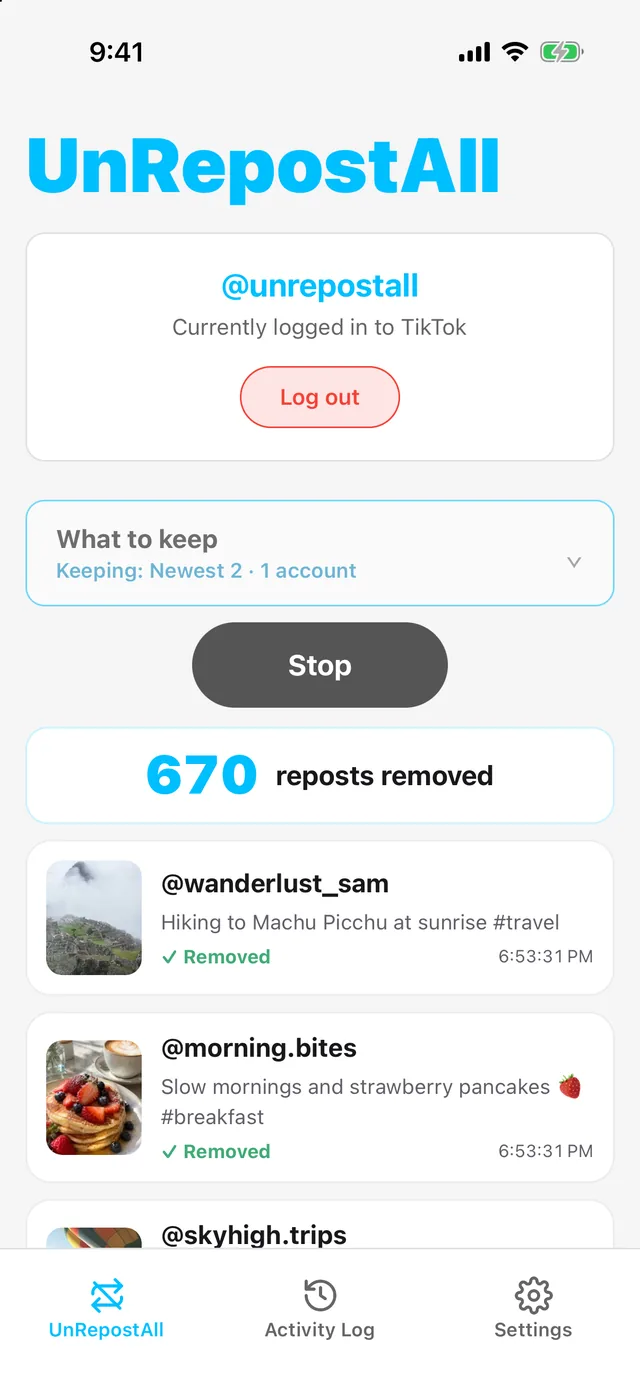
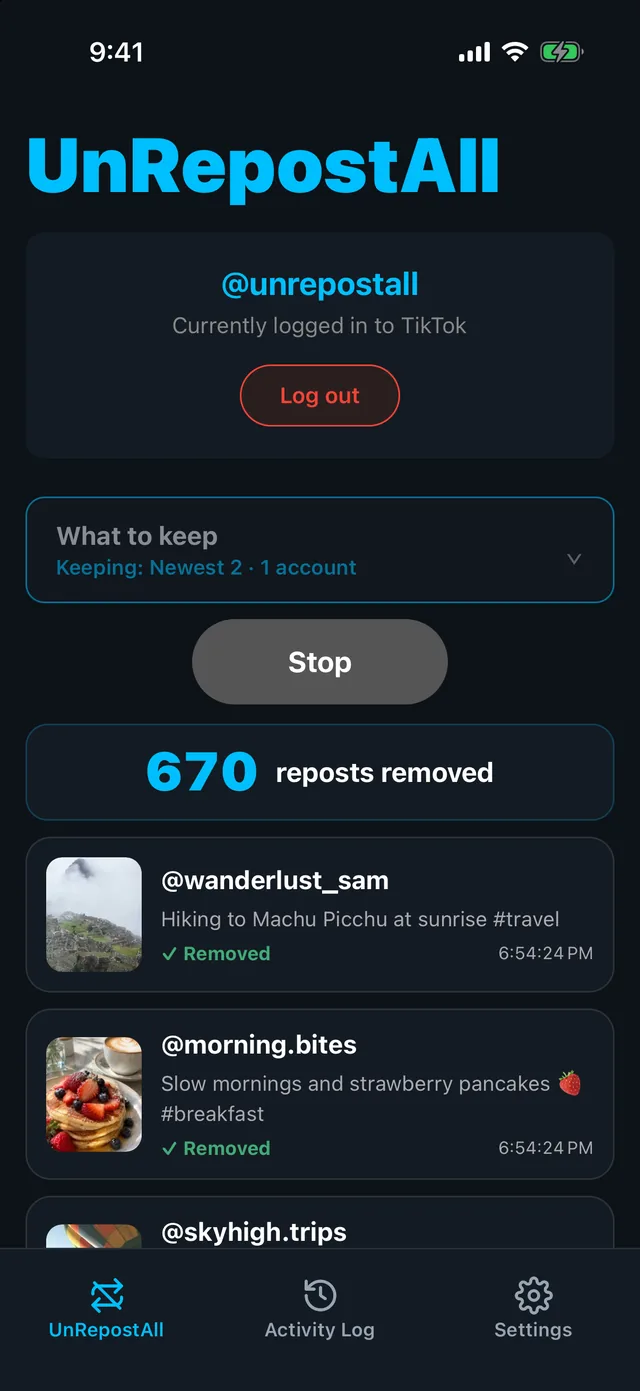
Step 3 Check the result
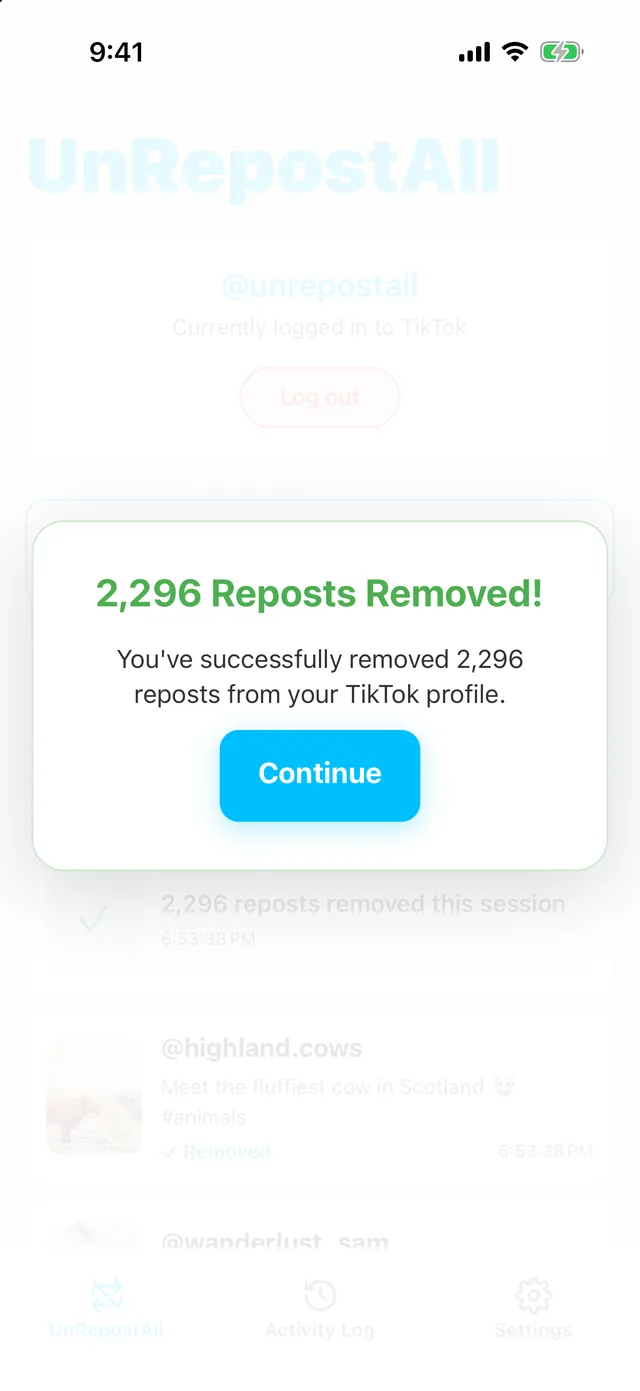
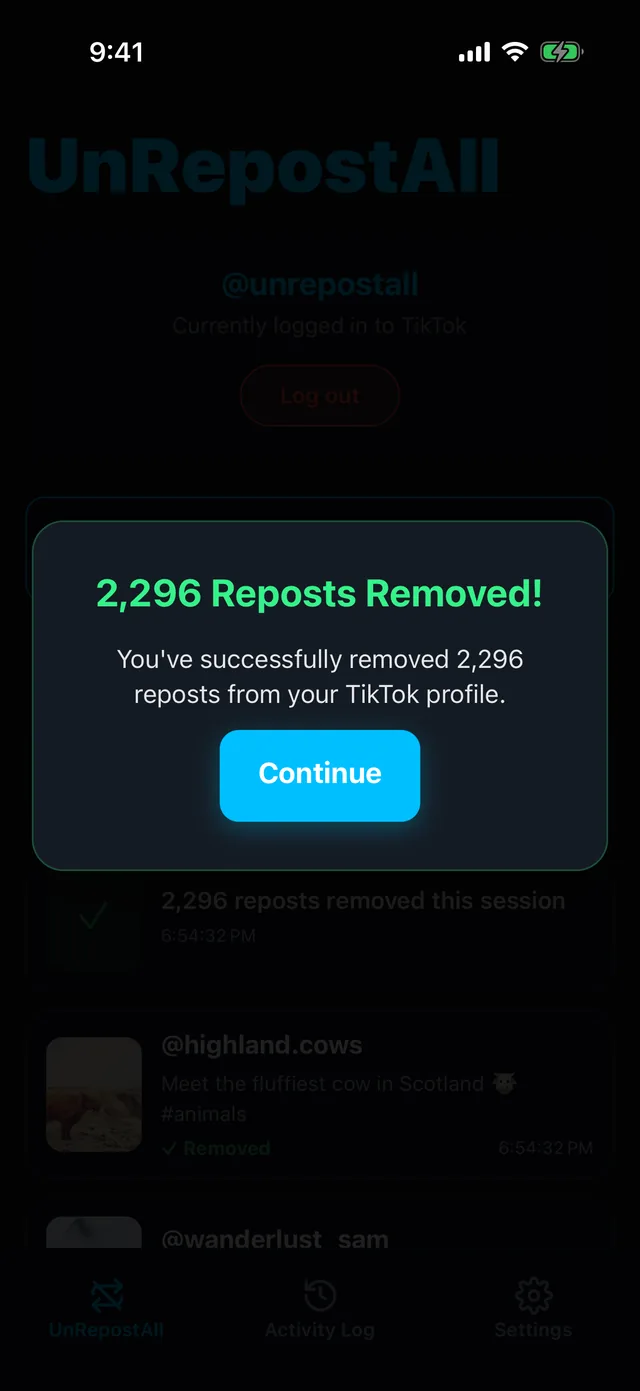
When it finishes, you’ll see how many reposts were removed. Every removal is also listed in the Activity Log tab.
On Mac & Windows
Step 1 Download UnRepostAll
Download UnRepostAll for Mac or Windows and open it. The app guides you through setup.
Step 2 Start removing
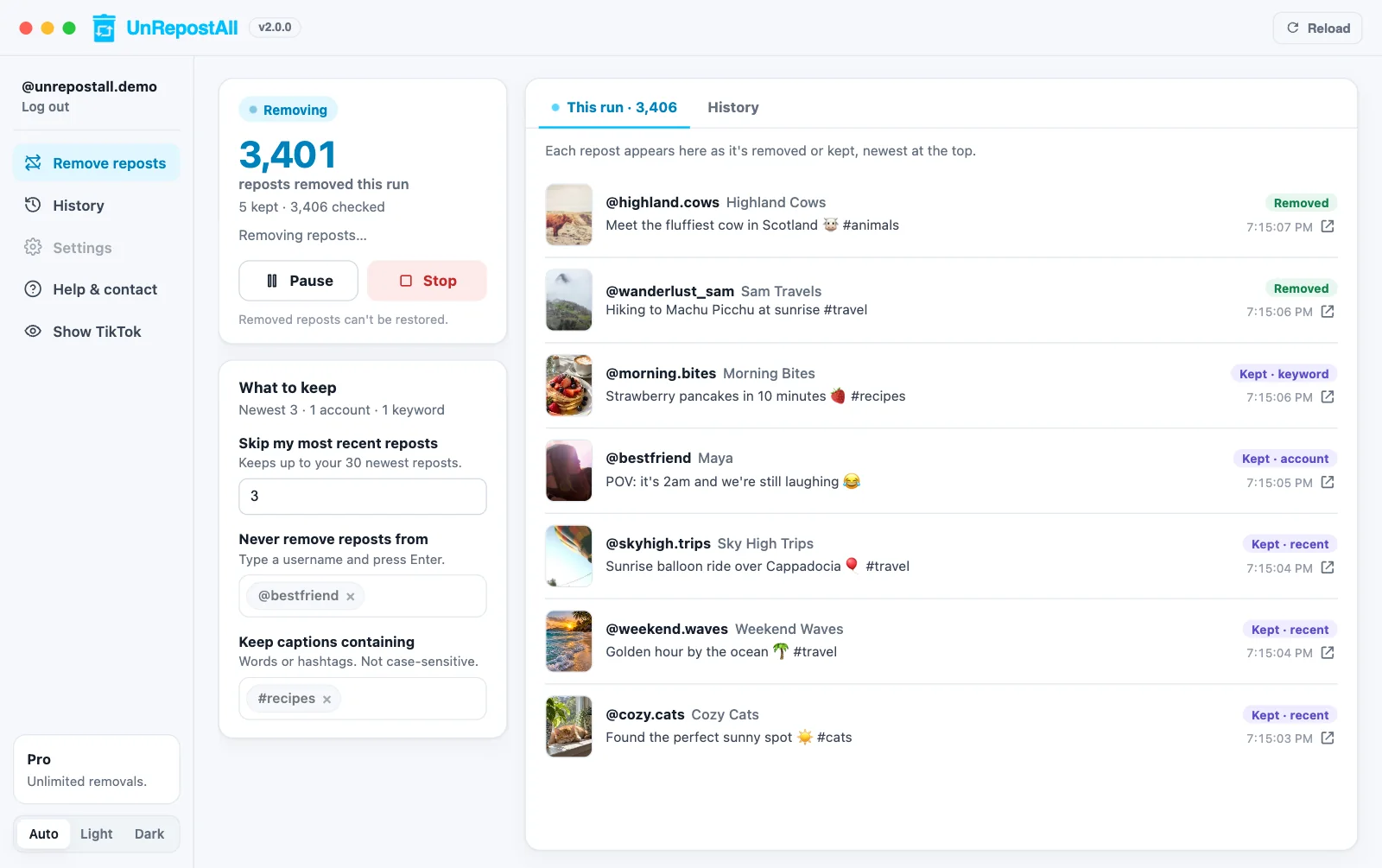
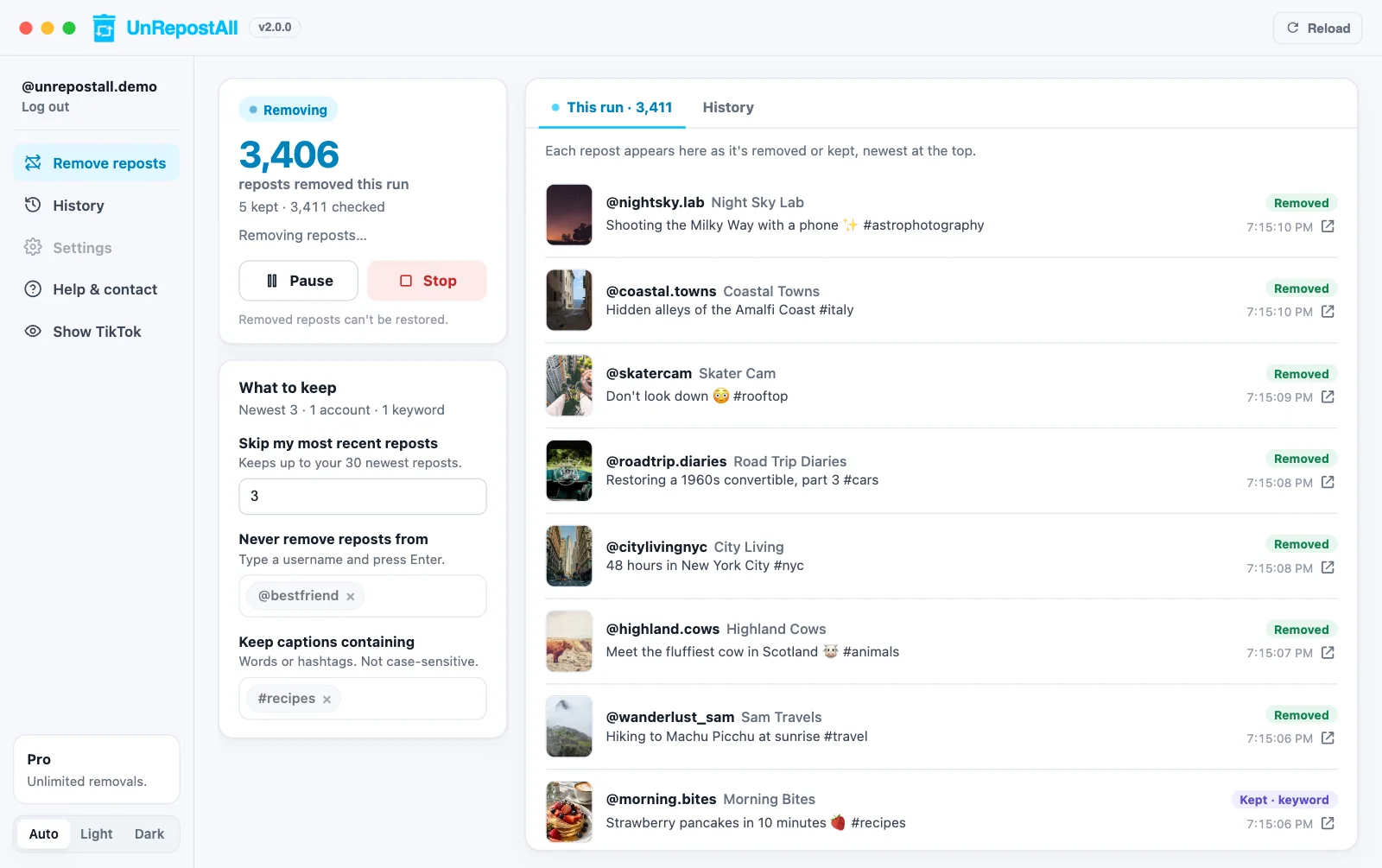
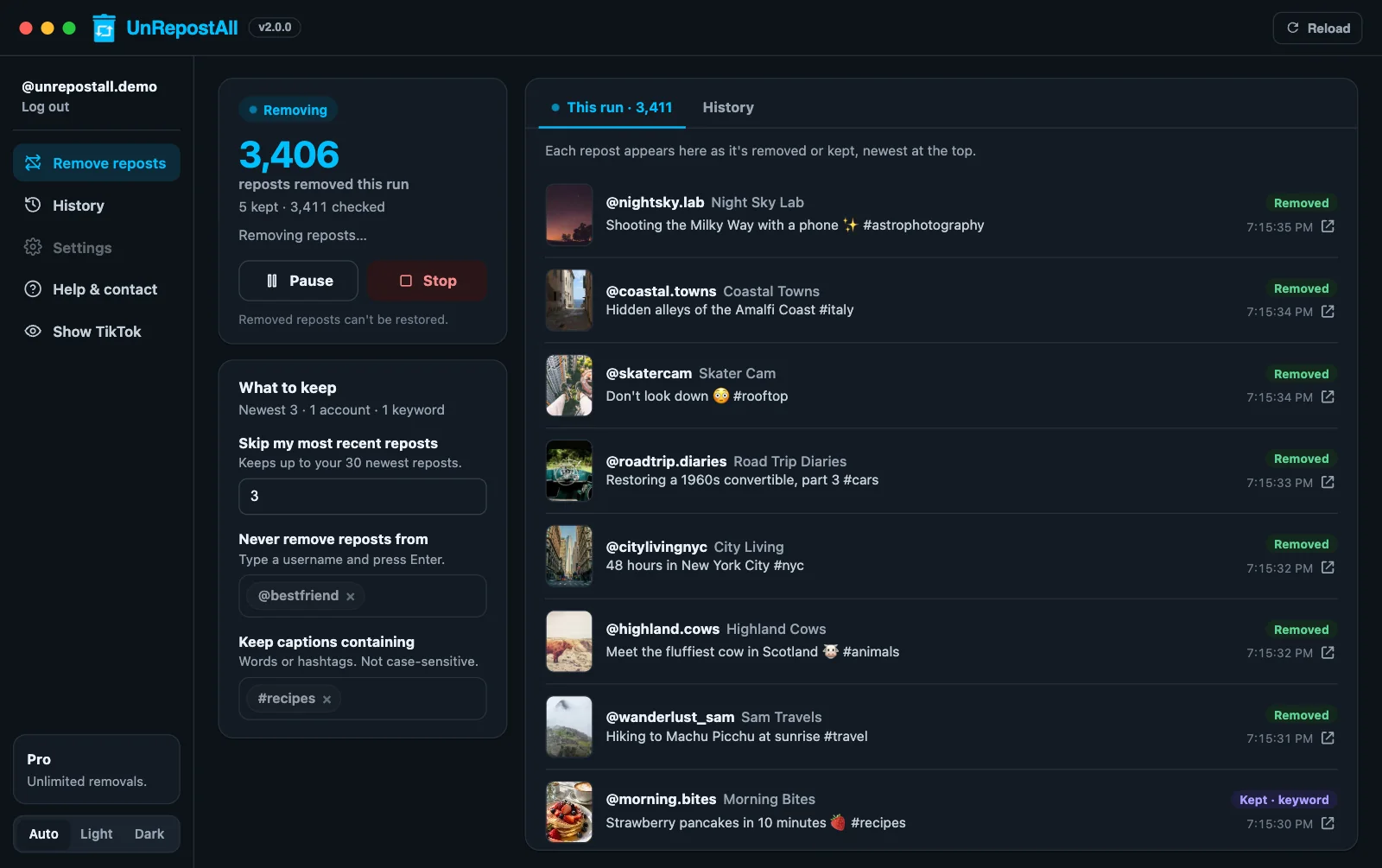
Optional: set What to keep first to skip your newest reposts, certain accounts, or captions with certain words.
Click Start removing, confirm, and UnRepostAll gets to work. Pause, resume, or stop at any time.
Step 3 Watch it work
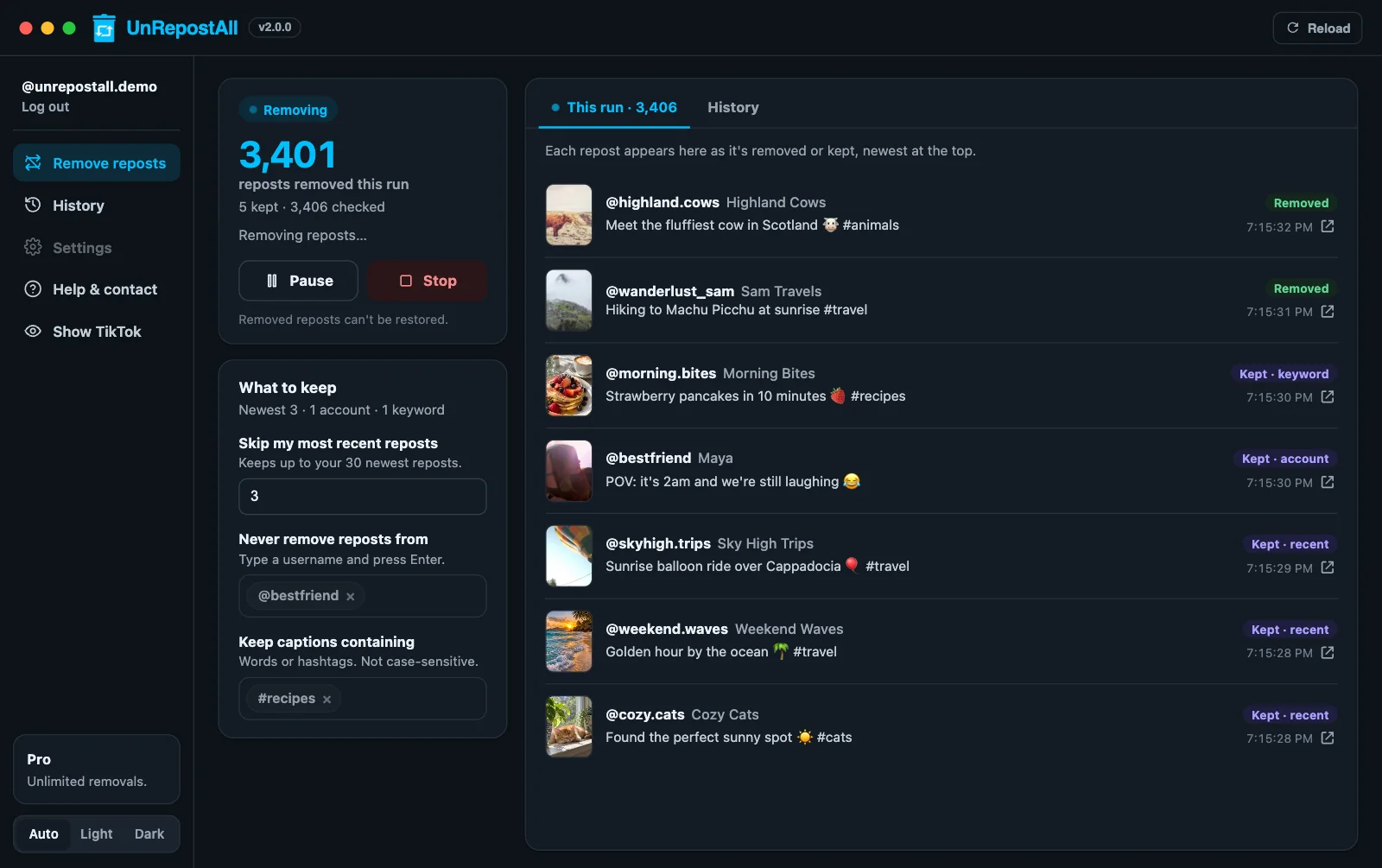
Each repost appears in Live activity as it’s removed, with a link to the video. Everything removed is saved in History, where you can search it or export a CSV.
Keeping some reposts
By default, UnRepostAll removes every repost. To keep some, like your newest reposts or a friend’s videos, set them in What to keep. See how to remove old reposts but keep some.
Phone or computer: which should you use?
| iPhone & Android | Mac & Windows | |
|---|---|---|
| Best for | Removing reposts from your phone | Long cleanups |
| Remove all reposts | Yes | Yes |
| Pause and resume | Yes | Yes |
| Runs in the background | Yes | Yes |
| History with CSV export | Yes | Yes |
Both are free to download, and you can use UnRepostAll across all your devices.
How long does it take?
It depends on how many reposts you have. UnRepostAll removes reposts one at a time with short pauses in between, and slows down if TikTok asks it to. A few hundred reposts usually take minutes; several thousand can take a while. UnRepostAll keeps going in the background while you use other apps.
What happens after you remove your reposts
- The videos disappear from your Reposts tab, and your followers no longer see them as reposted by you.
- The original videos are untouched. The creators keep their videos, likes, and comments.
- TikTok doesn’t send anyone a notification. More in does TikTok notify someone when you remove a repost.
- There’s no undo button. If you change your mind, you can repost a video again by hand.
Other ways to remove TikTok reposts
| Method | How it works | Downsides |
|---|---|---|
| One at a time in TikTok | Share → Remove repost on each video | Slow for more than a few dozen reposts |
| Browser extensions | Click through tiktok.com in Chrome for you | Need a computer with Chrome; the browser tab has to stay open |
| Console scripts | Paste code into your browser’s developer tools | Hard to set up and fragile; running code from strangers on your logged-in account is risky |
| Making your account private | Limits who sees your profile | Hides everything from non-followers, and doesn’t remove anything |
| UnRepostAll | App for iPhone, Android, Mac, and Windows | Free to download |
Before you start
- Want a record? Your history can be exported as a CSV with links to every video.
- UnRepostAll keeps running in the background, so you can use other apps while it works.
Remove your TikTok reposts with UnRepostAll
Remove all your TikTok reposts with one click on iPhone, Android, Mac, and Windows. Free to try.


Frequently asked questions
Can you remove all reposts on TikTok at once?
Not inside TikTok. TikTok only lets you remove reposts one at a time. UnRepostAll removes all of them in one run, on iPhone, Android, Mac, or Windows.
Does removing a repost delete the original video?
No. It only removes the video from your Reposts tab. The creator’s video, likes, and comments stay as they are.
Will the creator know I removed my repost?
TikTok doesn’t send a notification when you remove a repost. The video stops appearing as reposted by you.
Can I get my reposts back?
There’s no undo. You can repost a video again by hand. UnRepostAll keeps a history of every removed repost with a link to the video.
Is it safe for my account?
UnRepostAll removes reposts at a steady pace and slows down if TikTok asks it to.
Is UnRepostAll free?
Yes, UnRepostAll is free to download on iPhone, Android, Mac, and Windows.