 UnRepostAll
Most people don’t want an empty Reposts tab. They want to clear out years of old reposts and keep the recent ones, or the videos from a best friend. UnRepostAll lets you choose what stays before anything is removed.
Your options for what to keep
| Option | What it keeps | Available on |
|---|---|---|
| Keep my newest reposts | Up to your 30 most recent reposts | iPhone, Android, Mac, Windows |
| Never remove reposts from these accounts | Every repost from the accounts you add | iPhone, Android, Mac, Windows |
| Keep reposts whose caption contains | Reposts with any of your words or hashtags in the caption | Mac, Windows |
You can combine them. A repost is kept if any of your choices match it. Everything else is removed.
Step by step
On iPhone & Android
Step 1 Open UnRepostAll
Install UnRepostAll from the App Store or Google Play and open it. The app guides you through setup.
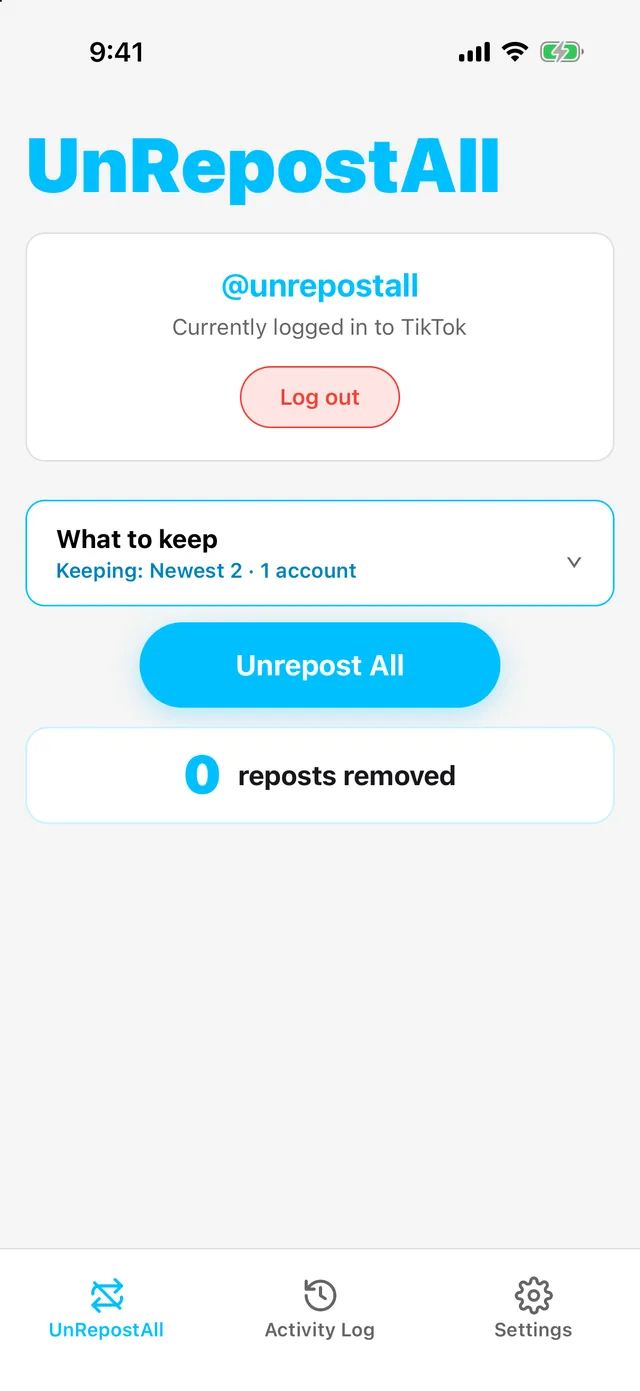
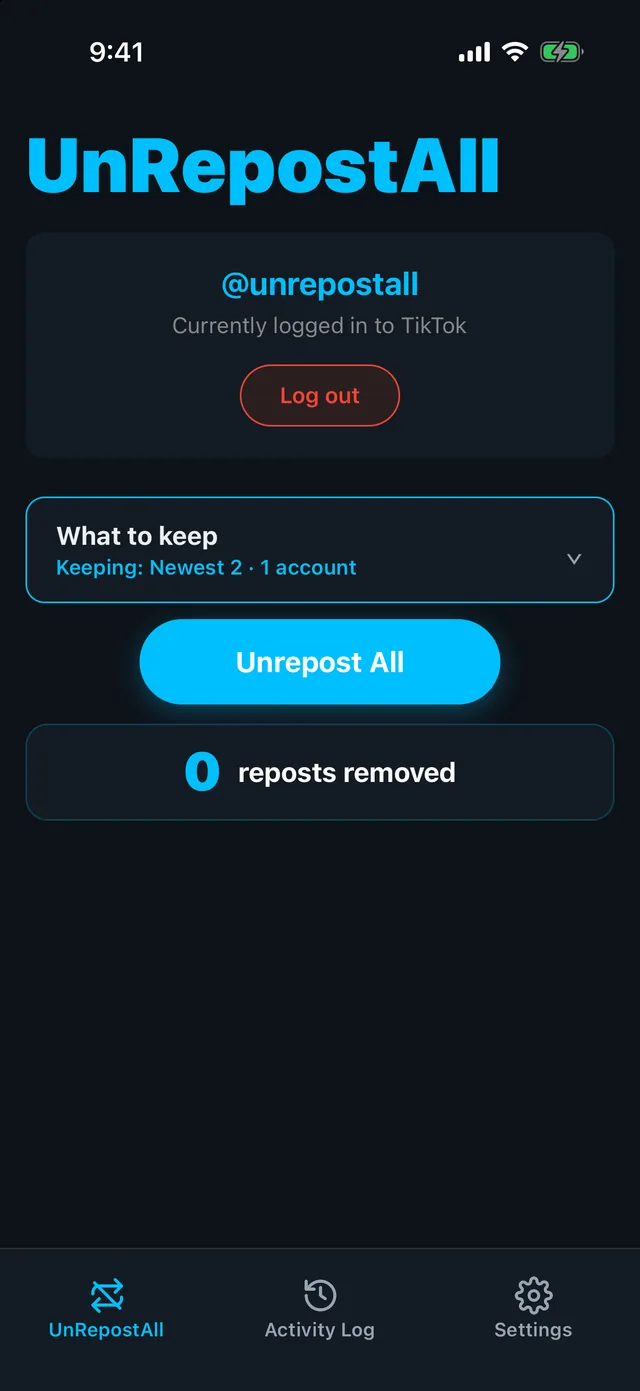
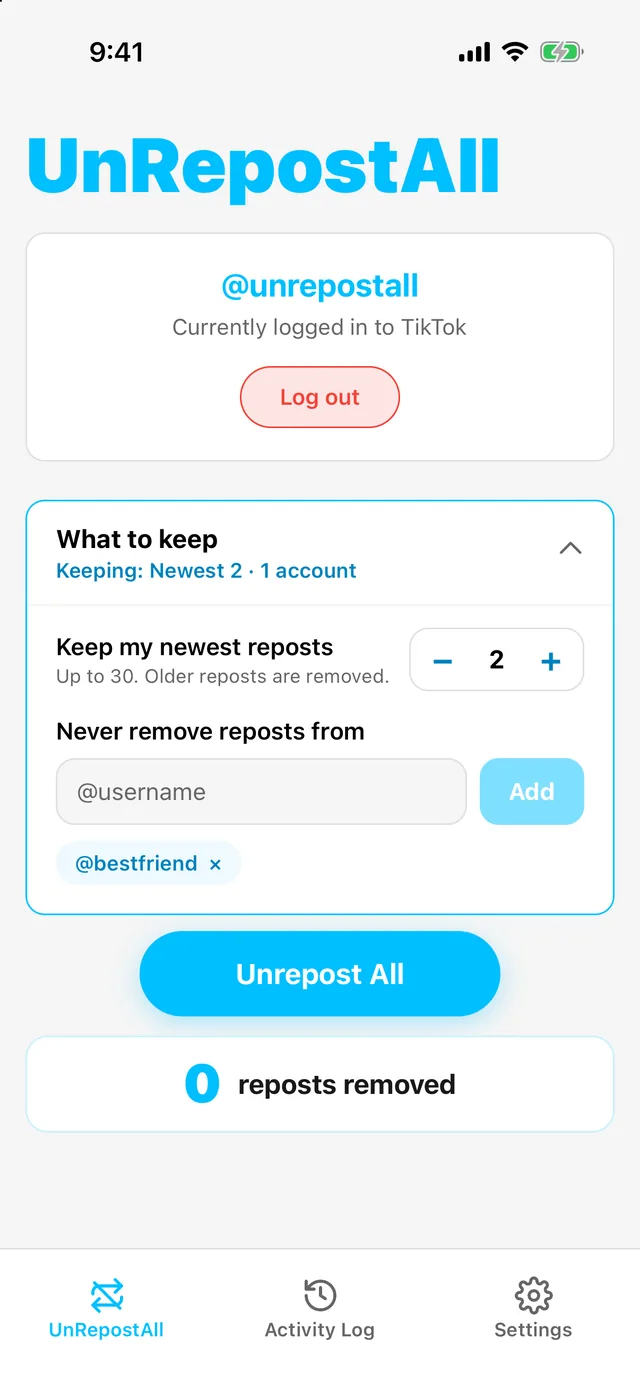
Step 2 Choose what to keep
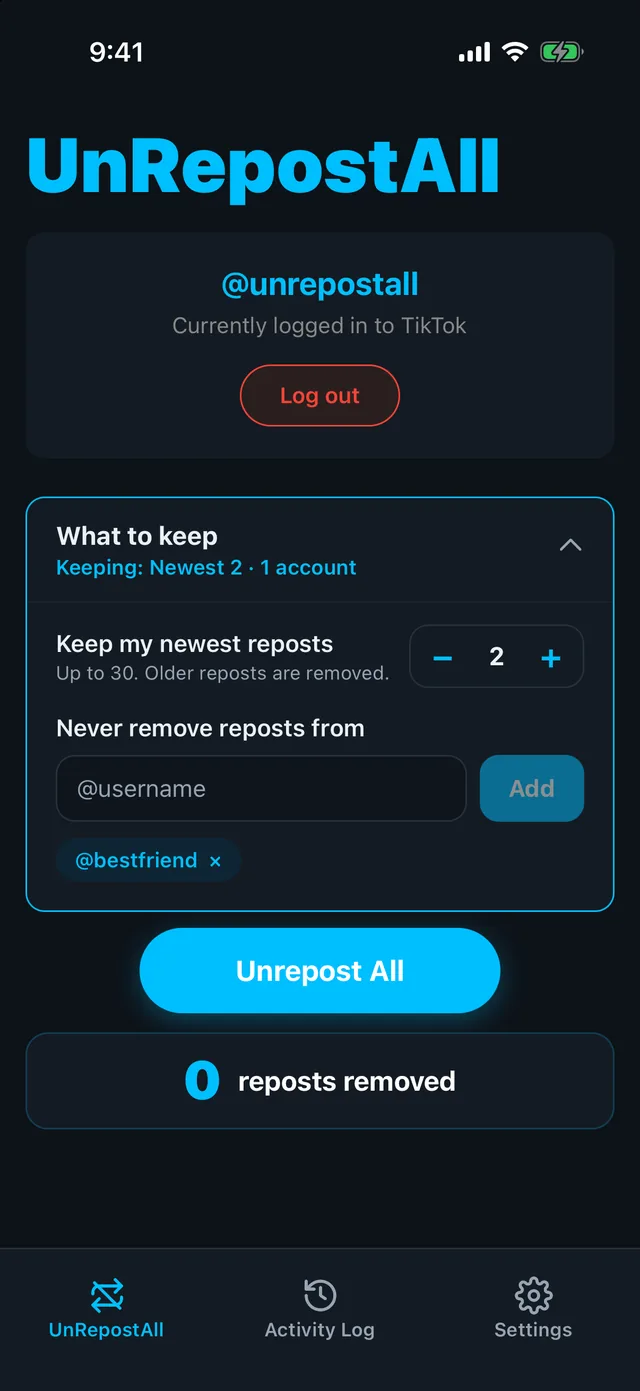
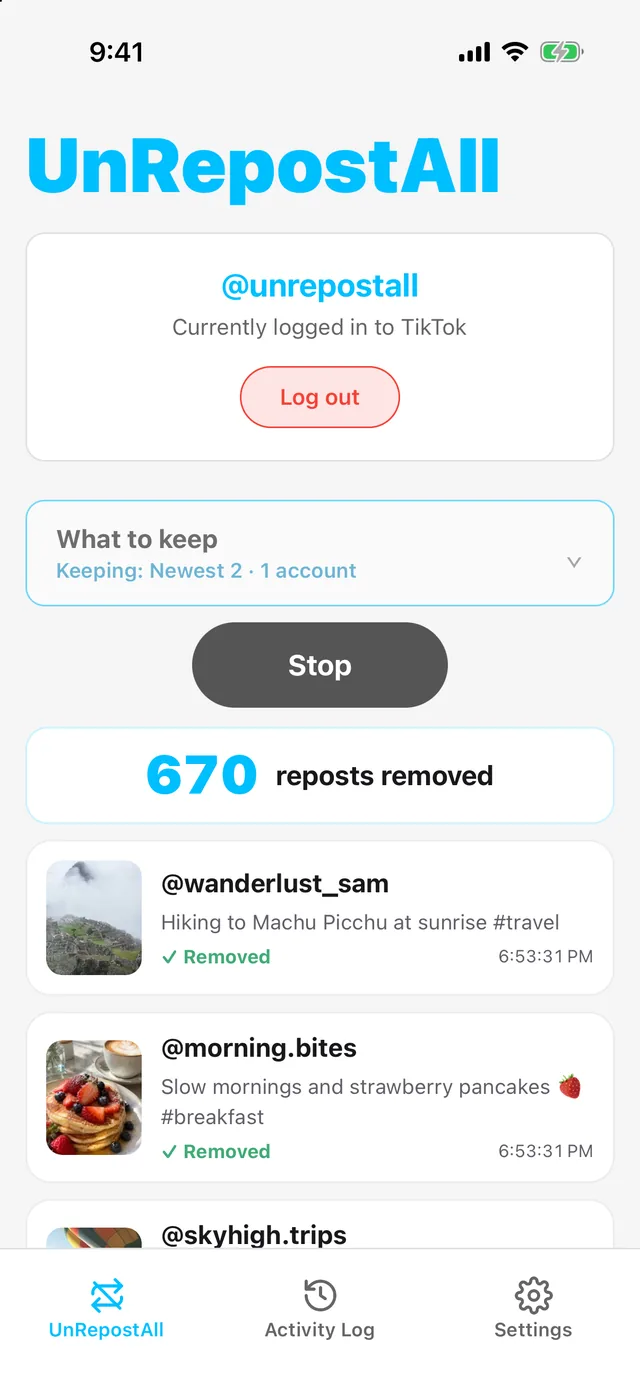
Tap What to keep. Use the − and + buttons to keep up to your 30 newest reposts, and add usernames under Never remove reposts from to protect accounts.
Step 3 Tap Unrepost All
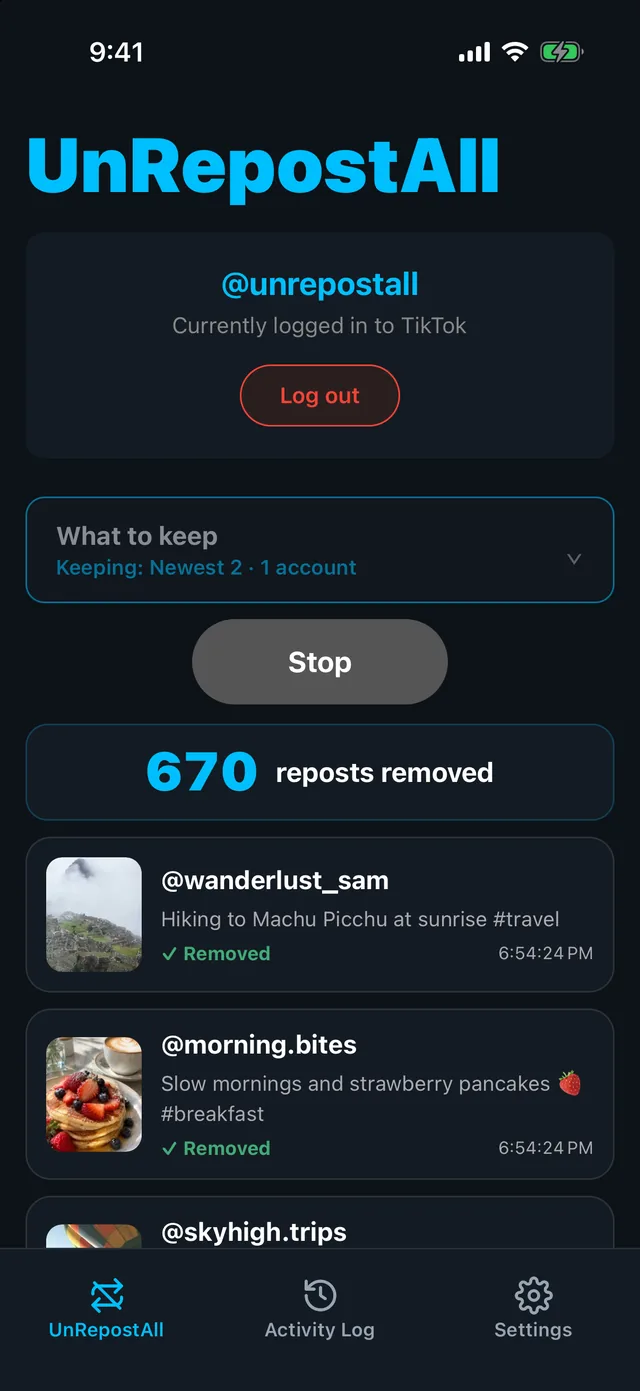
UnRepostAll works through your Reposts tab and removes each repost. It keeps running in the background, and you can tap Stop whenever you like.
Step 4 Check the result
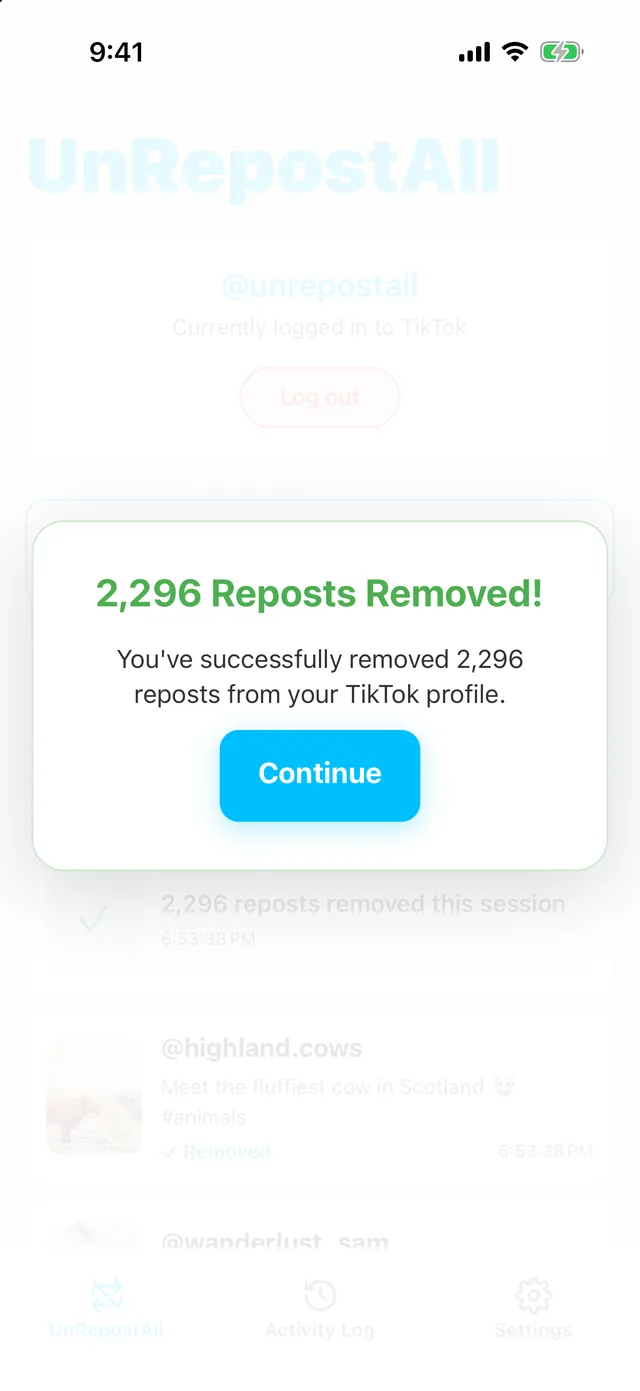
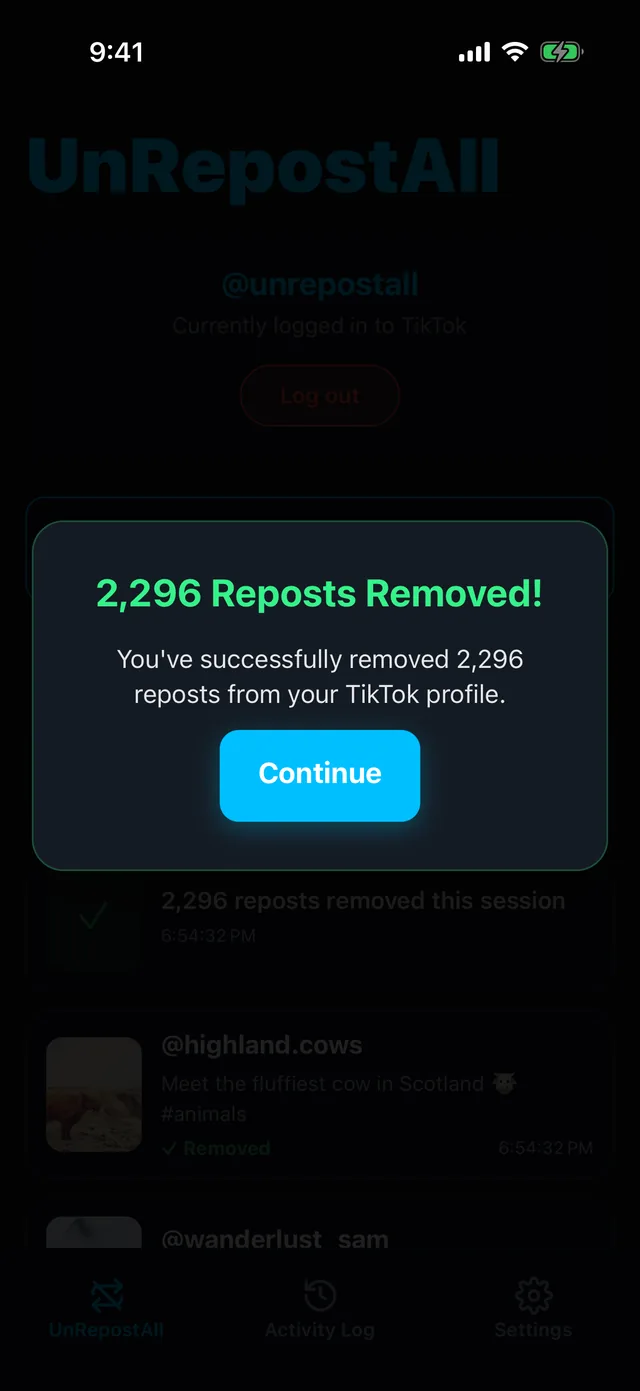
When it finishes, you’ll see how many reposts were removed. Every removal is also listed in the Activity Log tab.
On Mac & Windows
Step 1 Download UnRepostAll
Download UnRepostAll for Mac or Windows and open it. The app guides you through setup.
Step 2 Choose what to keep
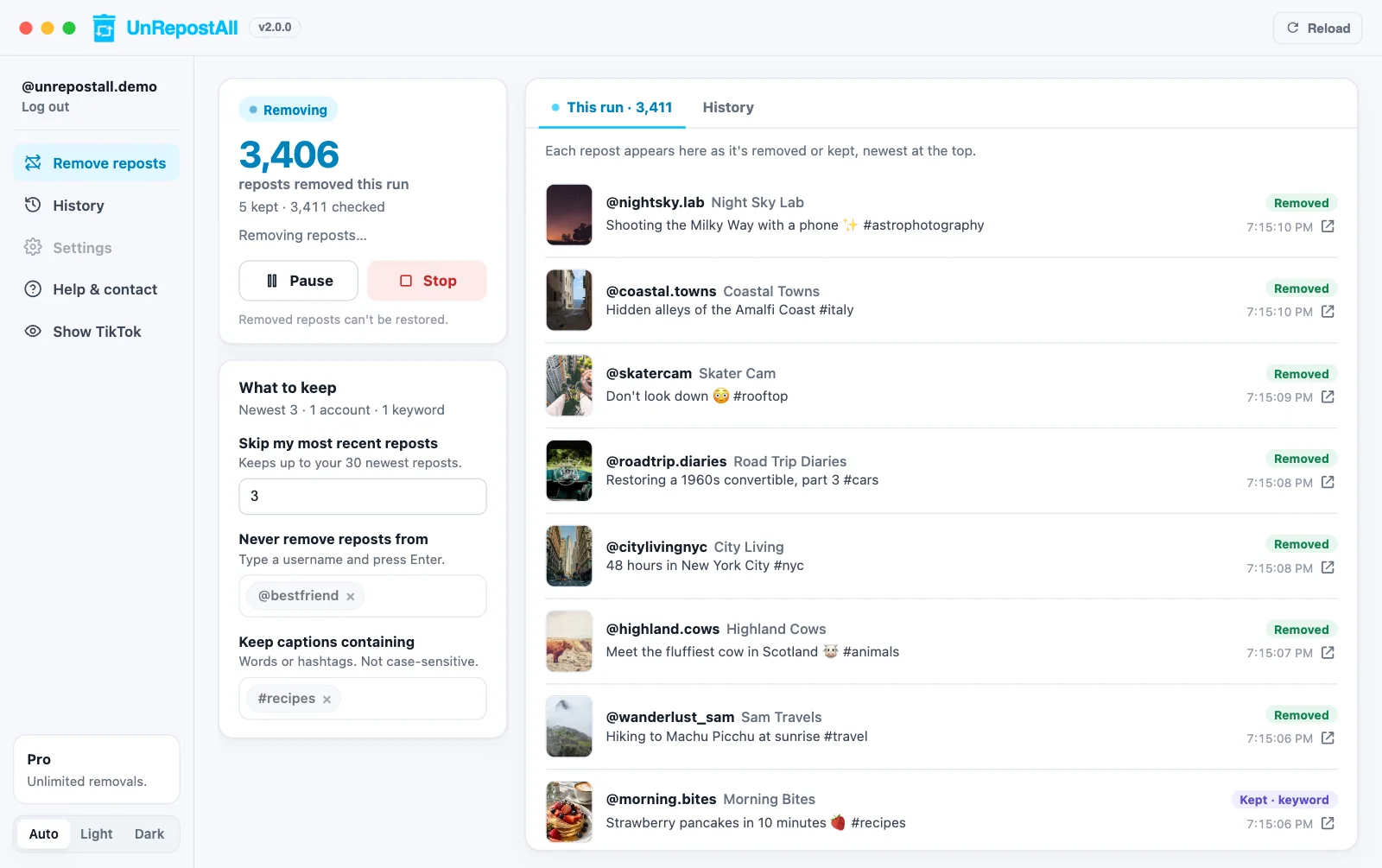
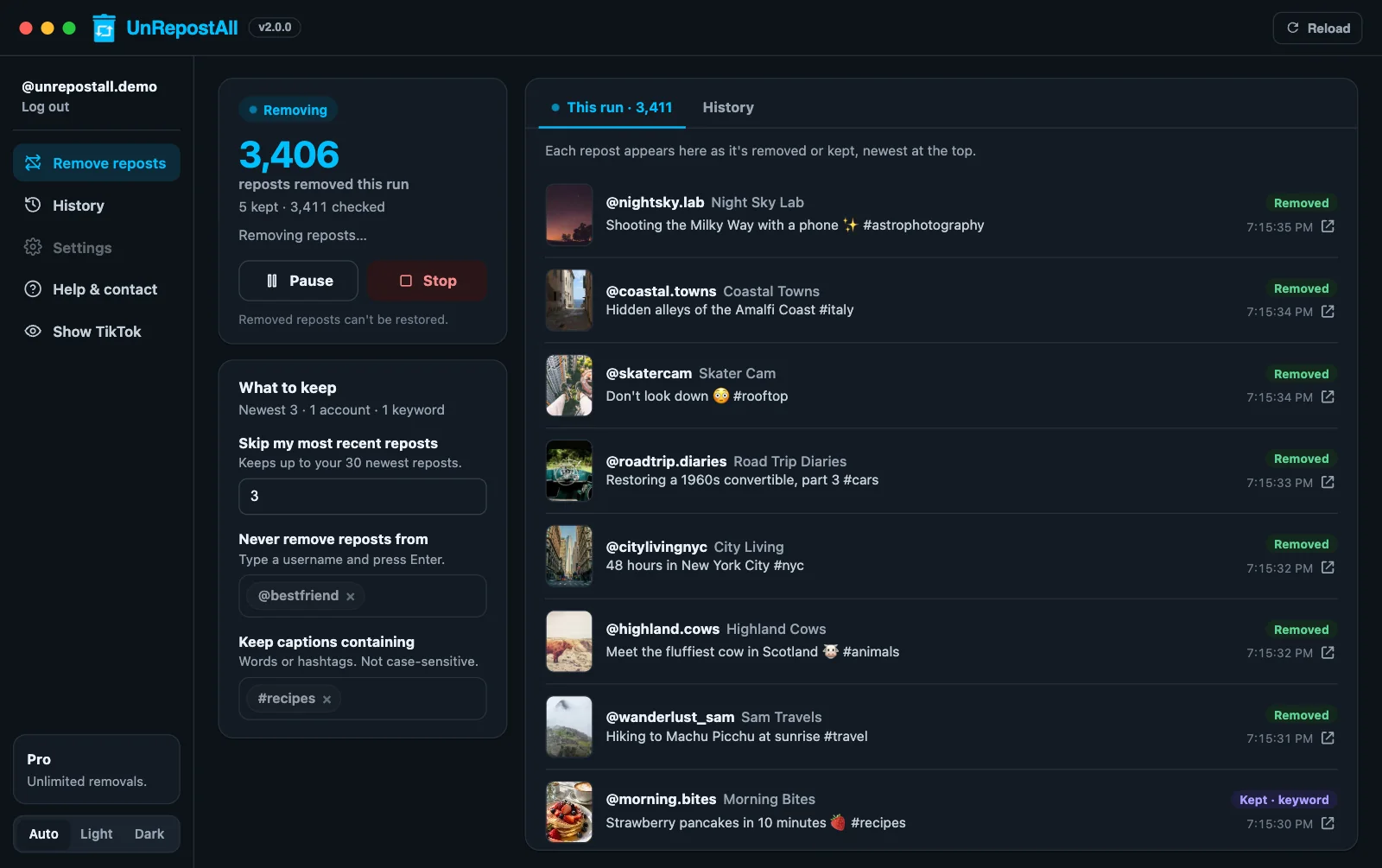
Under What to keep, skip up to your 30 most recent reposts, add accounts you never want removed, and add words or hashtags that keep a repost when they’re in its caption. Your choices are saved for next time.
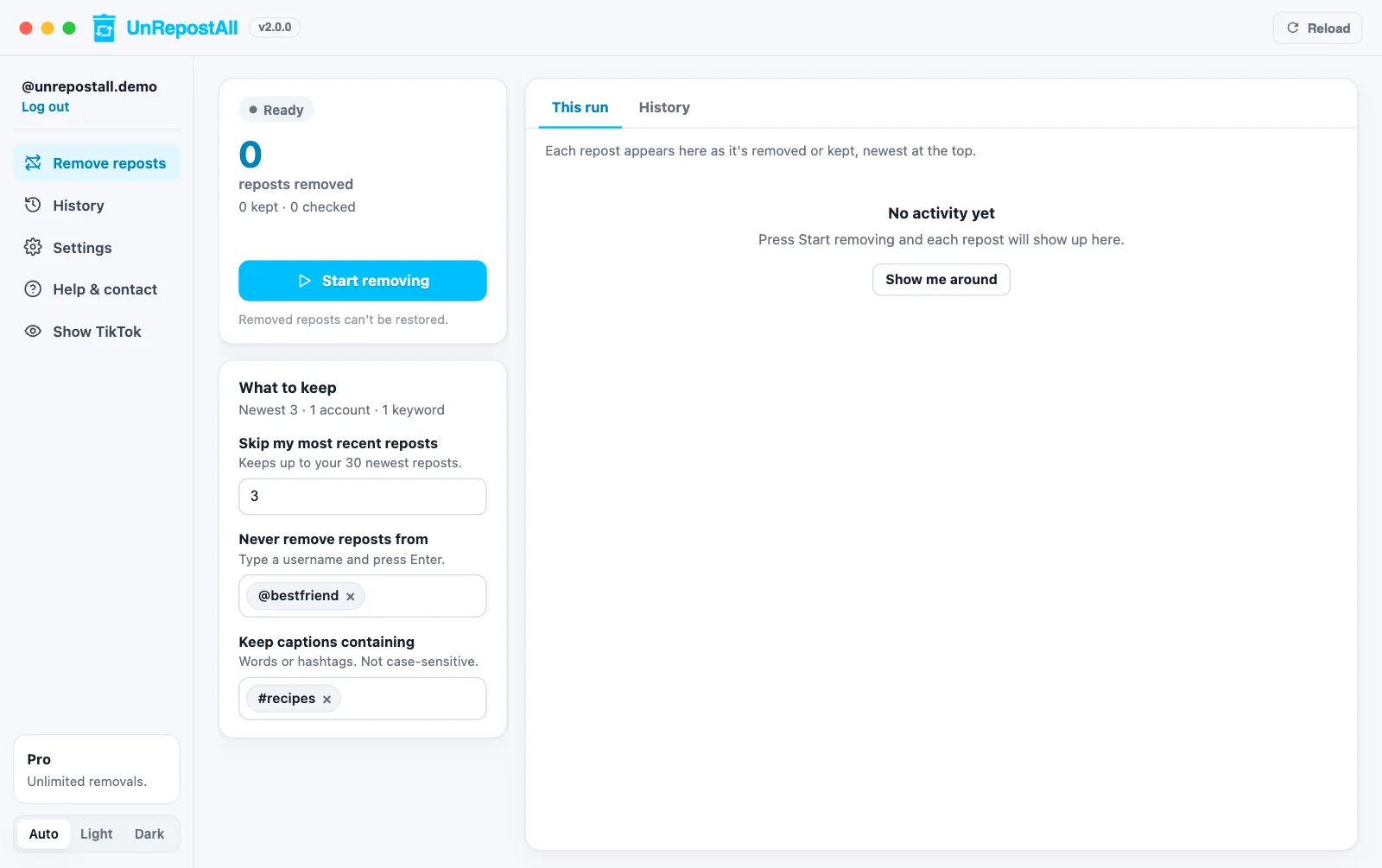
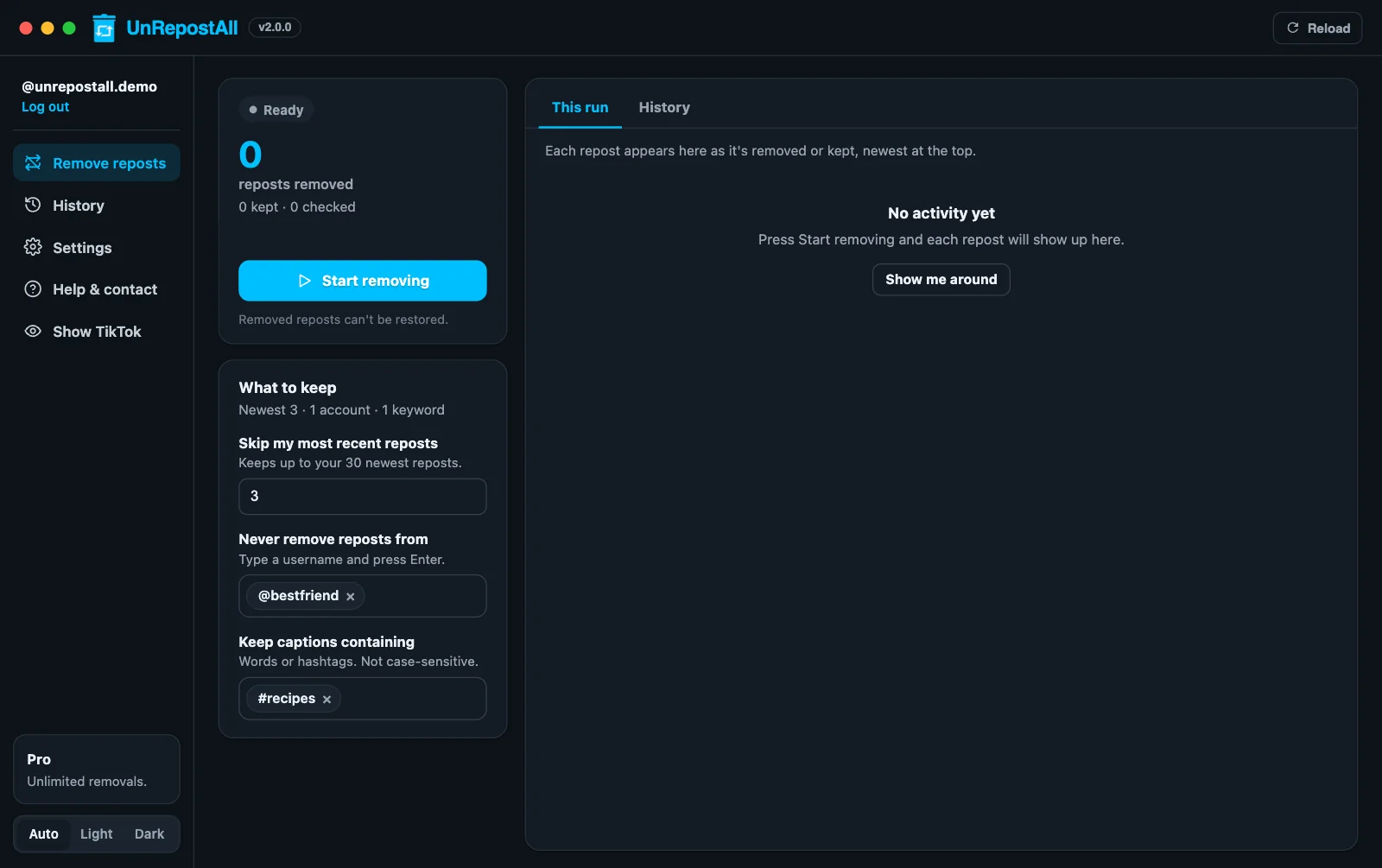
Step 3 Start removing
Click Start removing, confirm, and UnRepostAll gets to work. Pause, resume, or stop at any time.
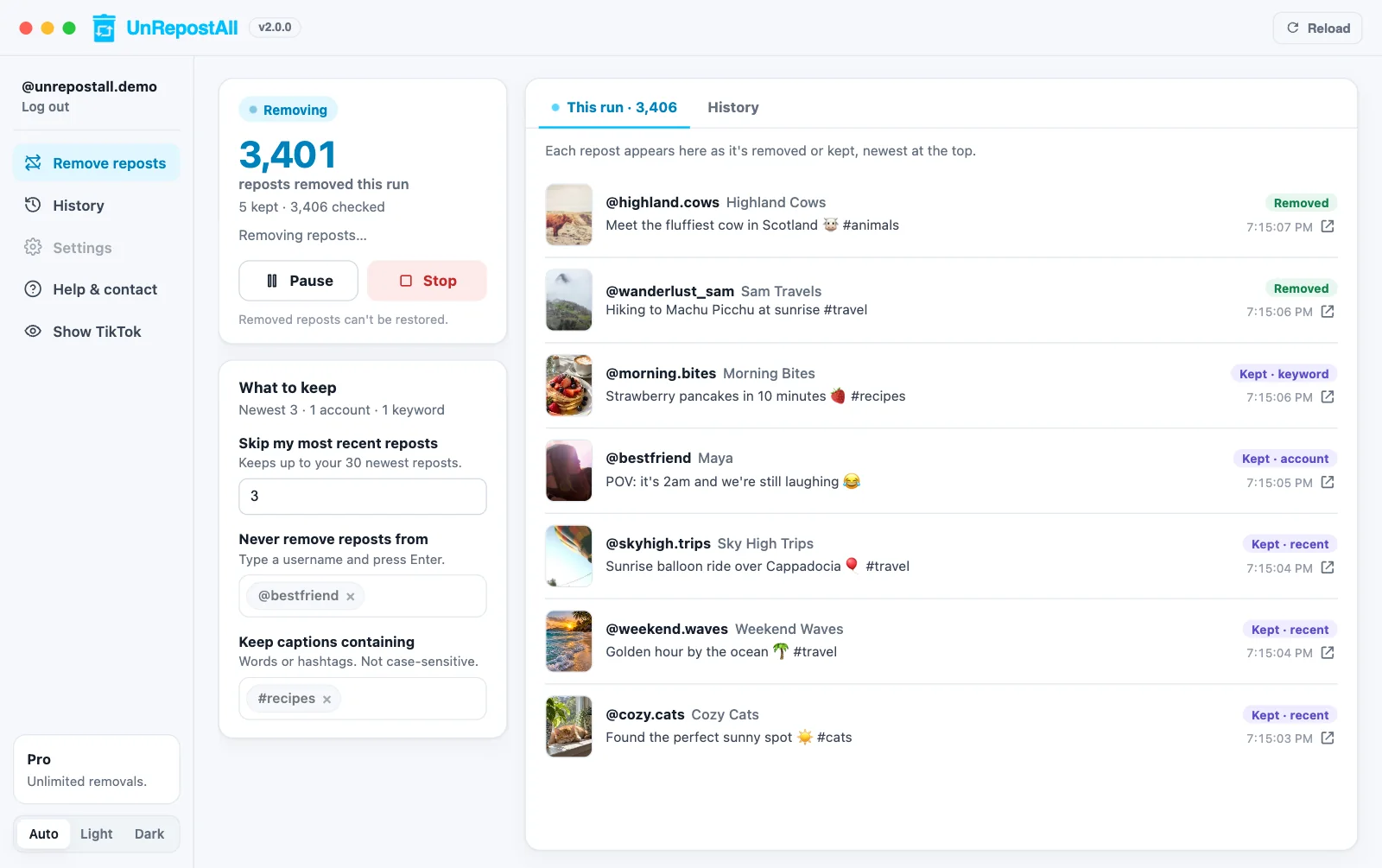
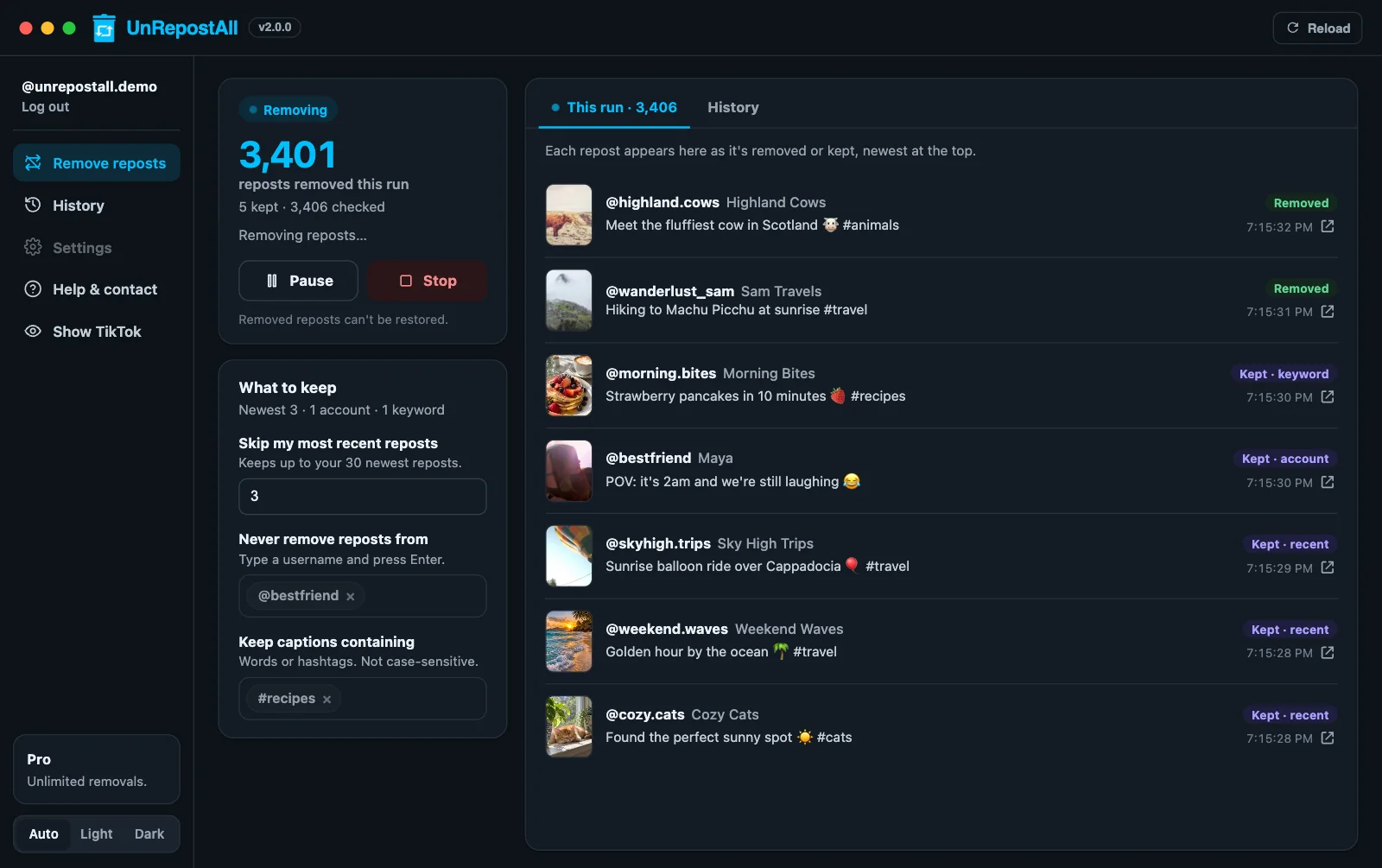
Step 4 Watch it work
Each repost appears in Live activity as it’s removed, with a link to the video. Everything removed is saved in History, where you can search it or export a CSV.
Examples
- Keep only your latest reposts: keep your newest 5.
- Clear everything except friends: add your friends’ usernames, keep 0 newest.
- Keep the recipes you saved: on desktop, keep captions containing #recipe or recipe.
Details
- “Newest” follows the order of your Reposts tab, which TikTok lists newest first.
- Usernames work with or without the @, and capitals don’t matter.
- Caption matching isn’t case-sensitive, and matches part of a word too.
- Your choices are saved for your next cleanup.
Remove your TikTok reposts with UnRepostAll
Remove all your TikTok reposts with one click on iPhone, Android, Mac, and Windows. Free to try.


Frequently asked questions
Can I keep more than 30 recent reposts?
Not with “Keep my newest reposts”, which covers up to 30. To keep more, protect the accounts you care about, or on desktop keep reposts by caption.
Can I pick individual videos to keep?
Not one by one. Use accounts or caption words to describe what to keep.