 UnRepostAll
Reposts show up on your profile and in your followers’ feeds. If you’d rather people didn’t see what you’ve been reposting, you have three options.
In this guide
Who can see your reposts
Your reposts appear in the Reposts tab on your profile, and TikTok can show a reposted video to your followers in their feeds, labeled as reposted by you. If your account is public, anyone who visits your profile can open the Reposts tab.
Option 1: Check TikTok’s privacy settings
Go to your profile, tap the menu (☰), then Settings and privacy → Privacy. Depending on your app version and region, TikTok may offer a setting for who can see your reposted videos. If it’s there, choose the most private option. If you don’t see one, the setting isn’t available for your account, so use one of the options below.
Option 2: Make your account private
In Settings and privacy → Privacy, turn on Private account. Only followers you approve can see your profile, including reposts. This hides everything else too, and your current followers can still see your reposts.
Option 3: Remove the reposts
The only way to make sure nobody sees a repost is to remove it. For a few, use Remove repost on each video. To clear them all at once, use UnRepostAll:
On iPhone & Android
Step 1 Open UnRepostAll
Install UnRepostAll from the App Store or Google Play and open it. The app guides you through setup.
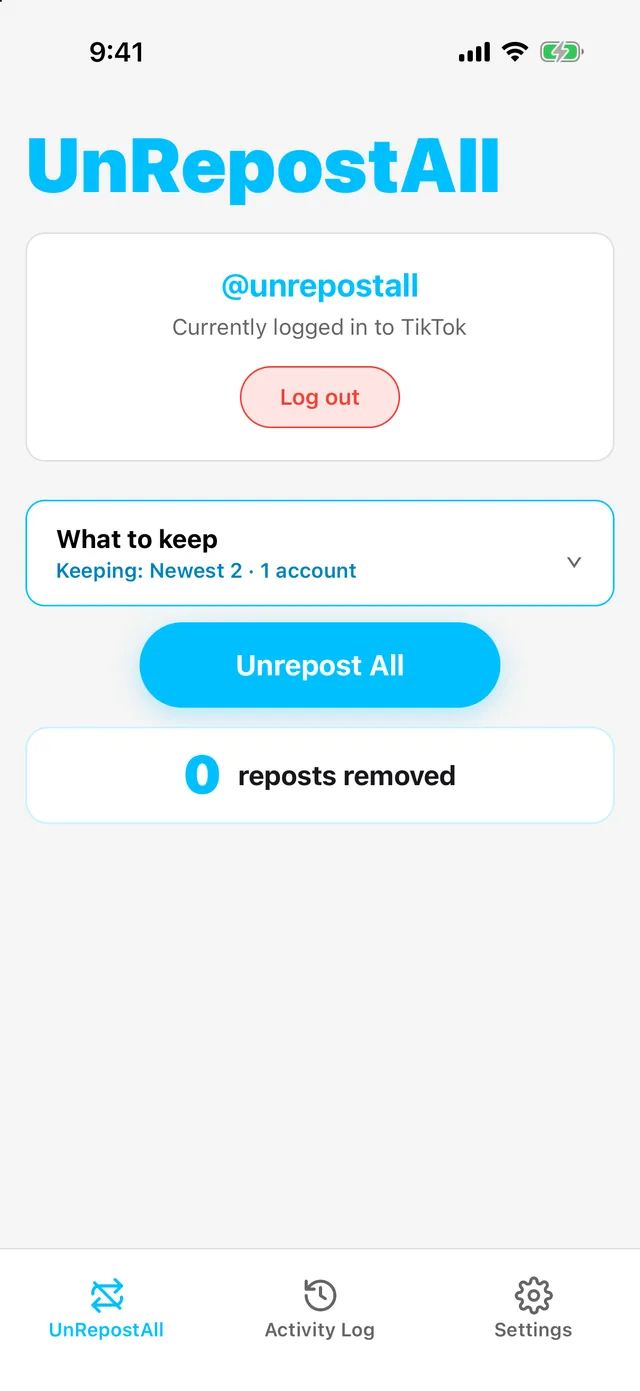
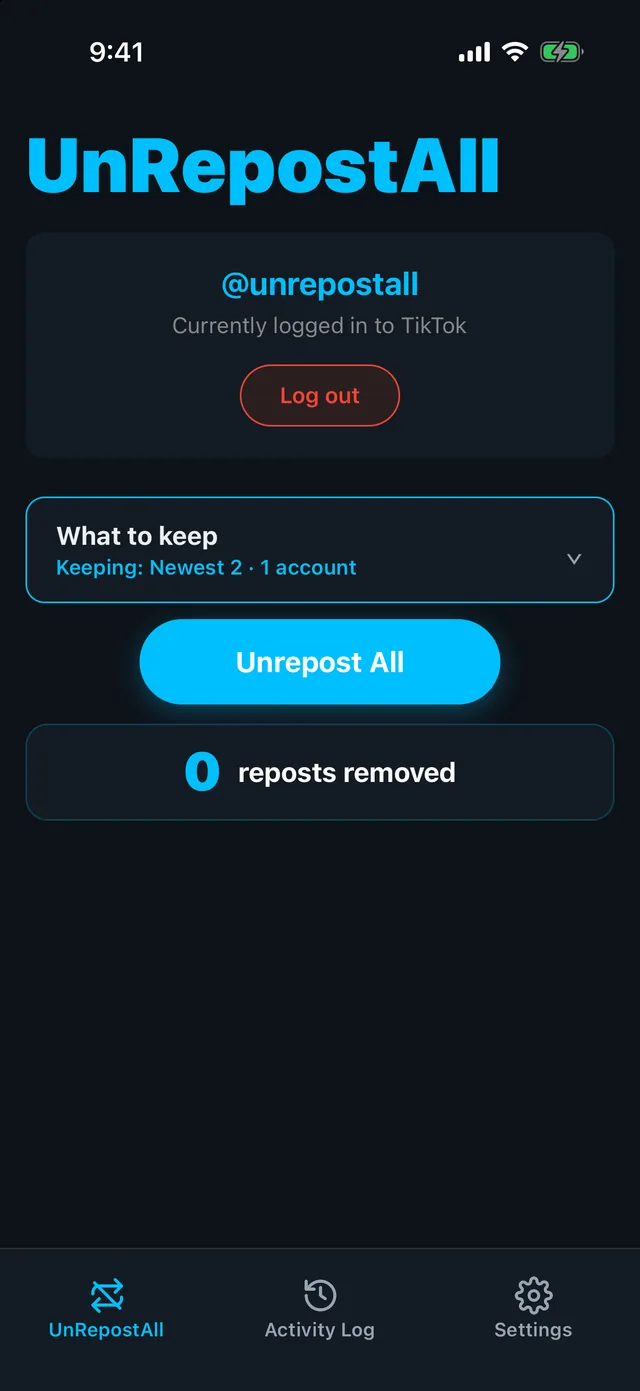
Step 2 Tap Unrepost All
Optional: tap What to keep first to keep your newest reposts or reposts from certain accounts.
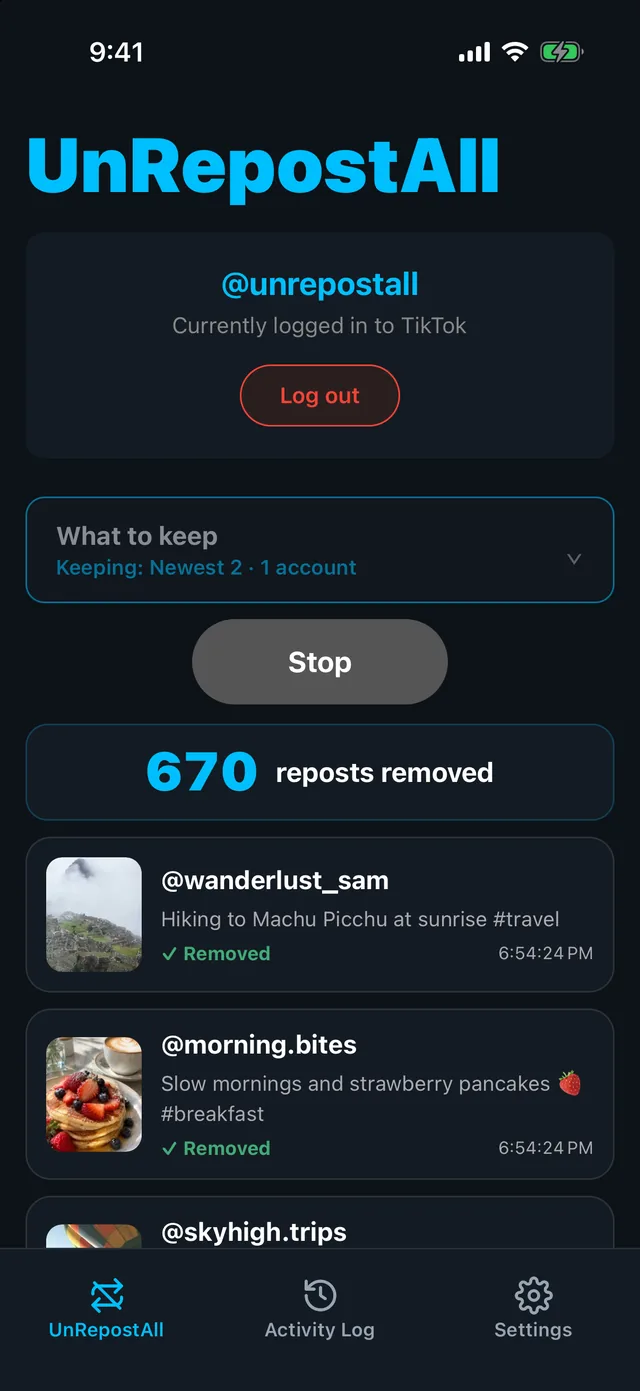
UnRepostAll works through your Reposts tab and removes each repost. It keeps running in the background, and you can tap Stop whenever you like.
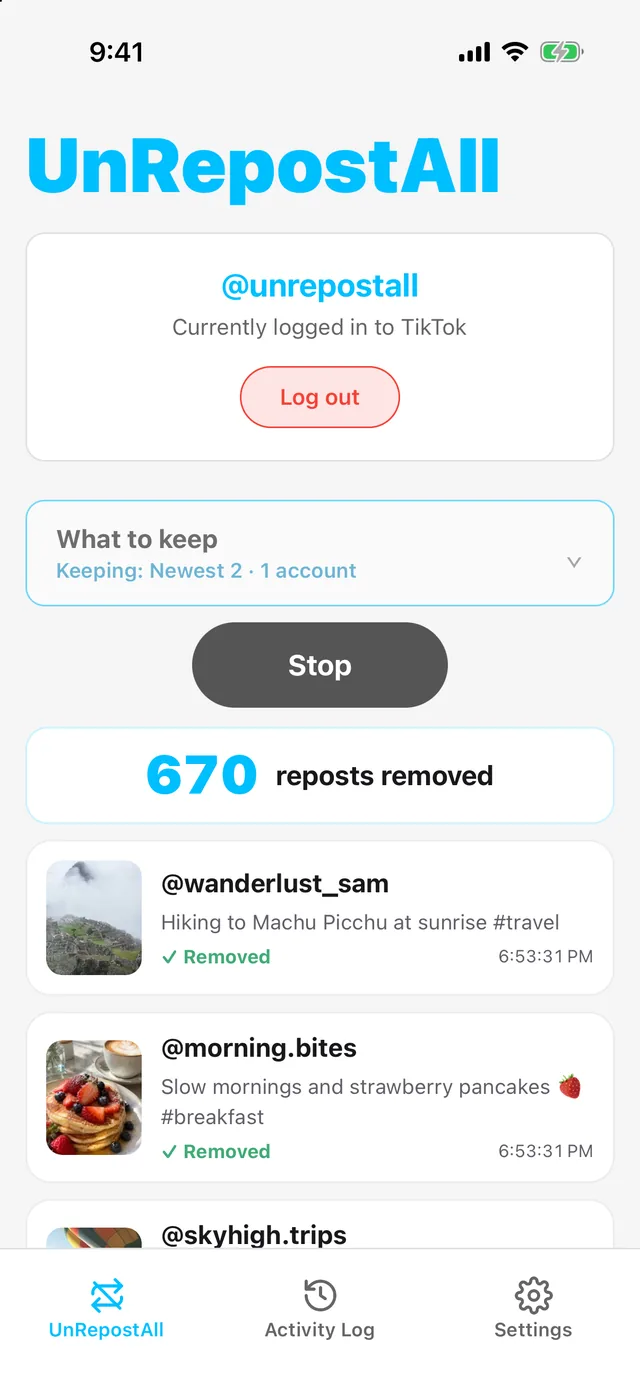
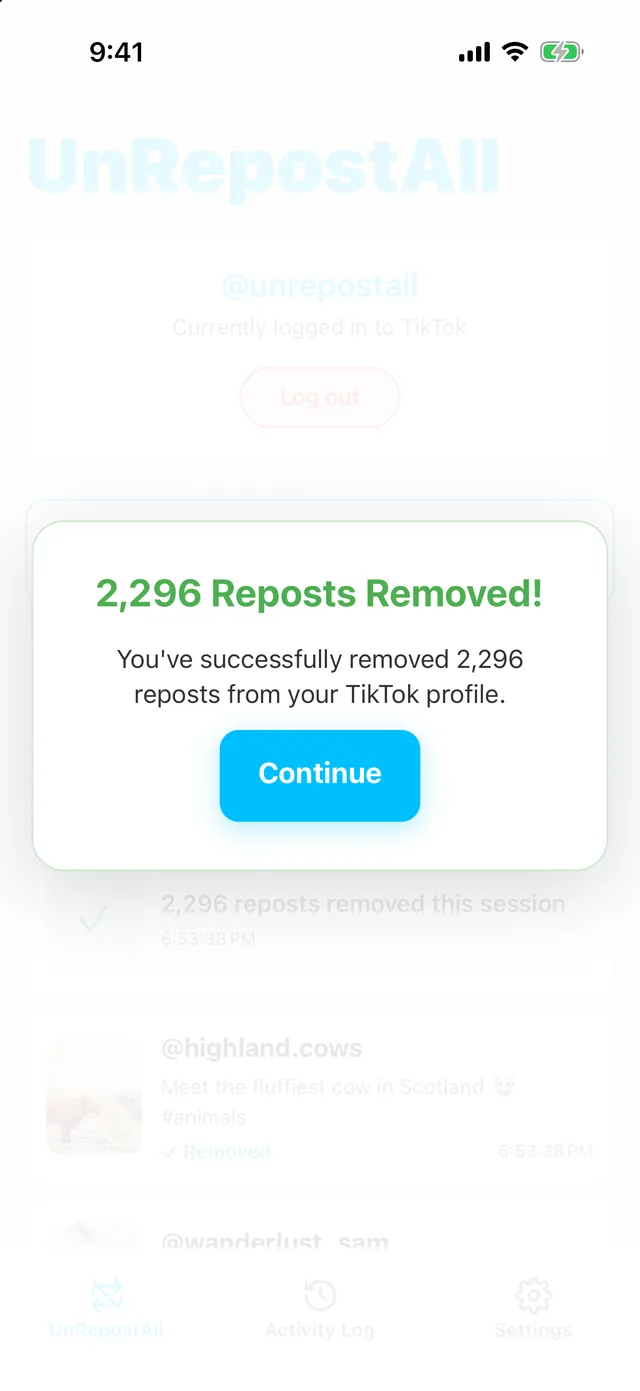
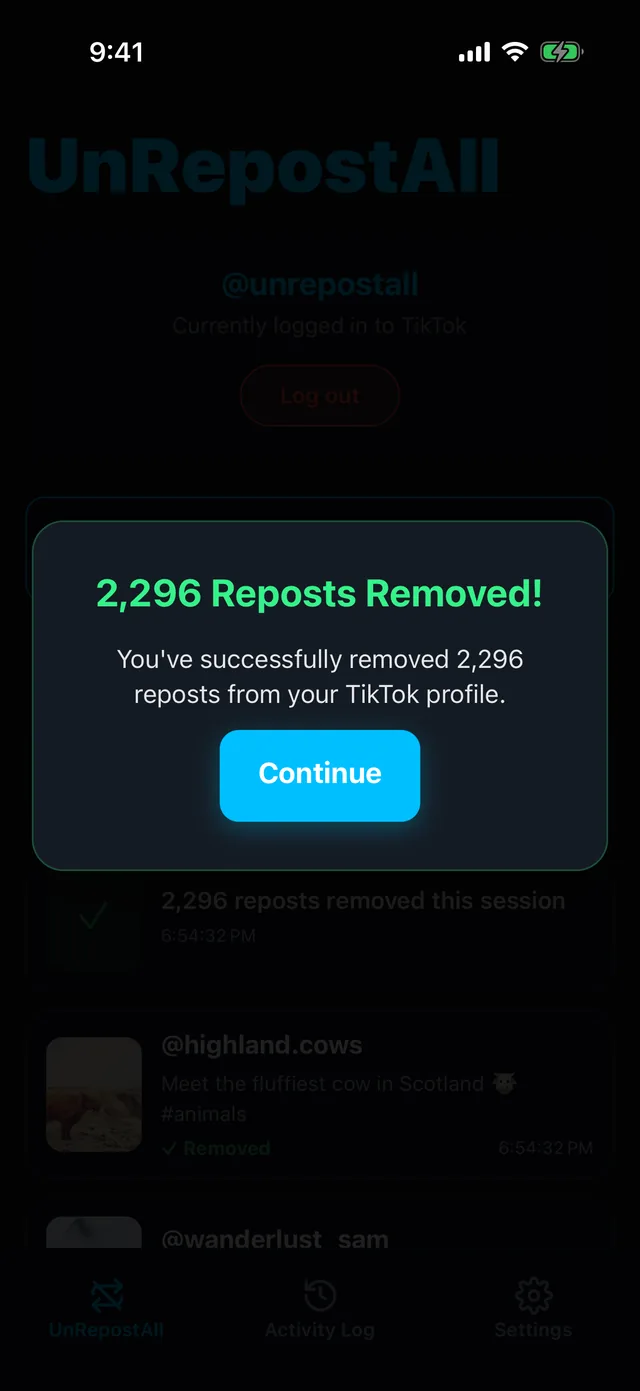
Step 3 Check the result
When it finishes, you’ll see how many reposts were removed. Every removal is also listed in the Activity Log tab.
On Mac & Windows
Step 1 Download UnRepostAll
Download UnRepostAll for Mac or Windows and open it. The app guides you through setup.
Step 2 Start removing
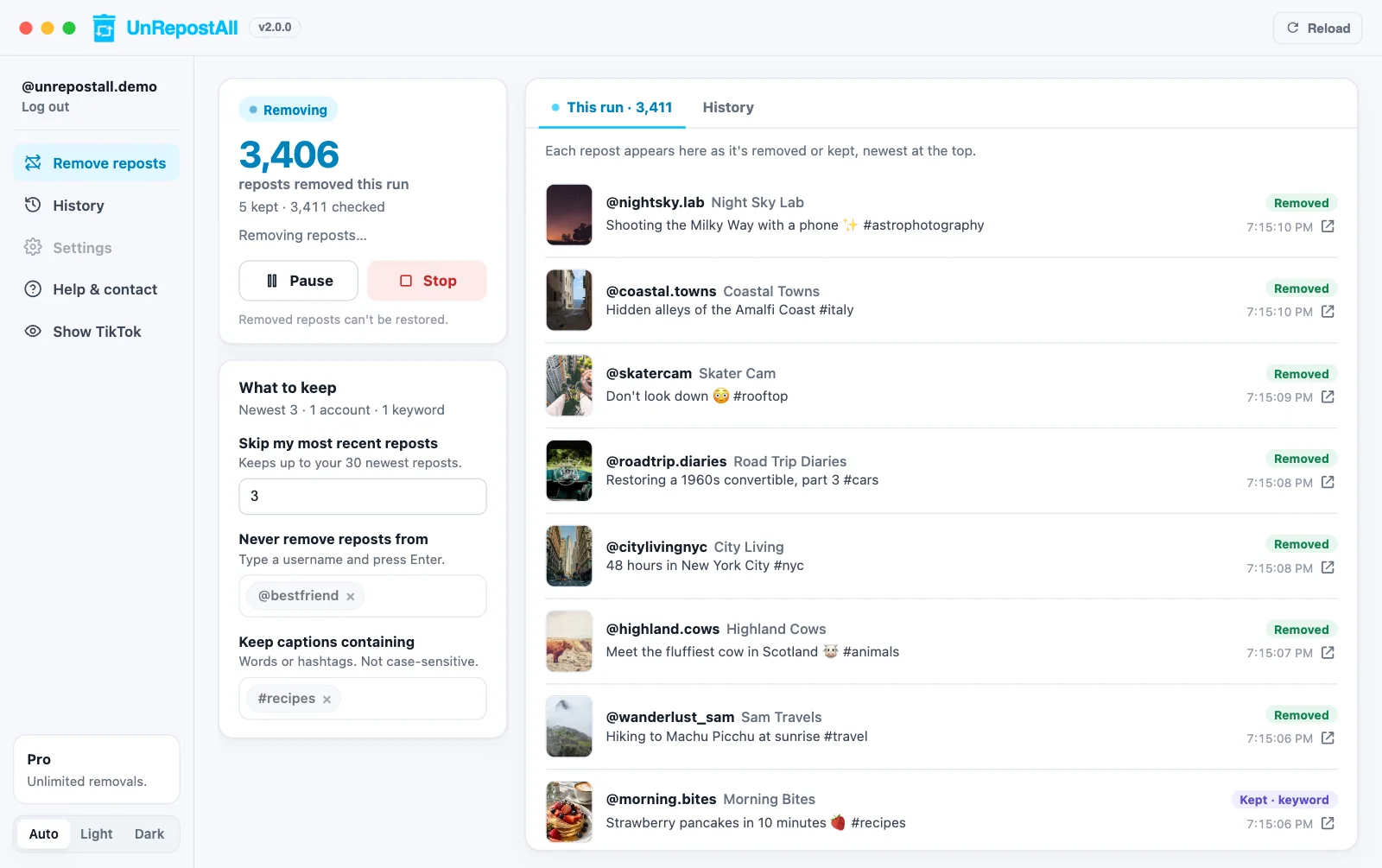
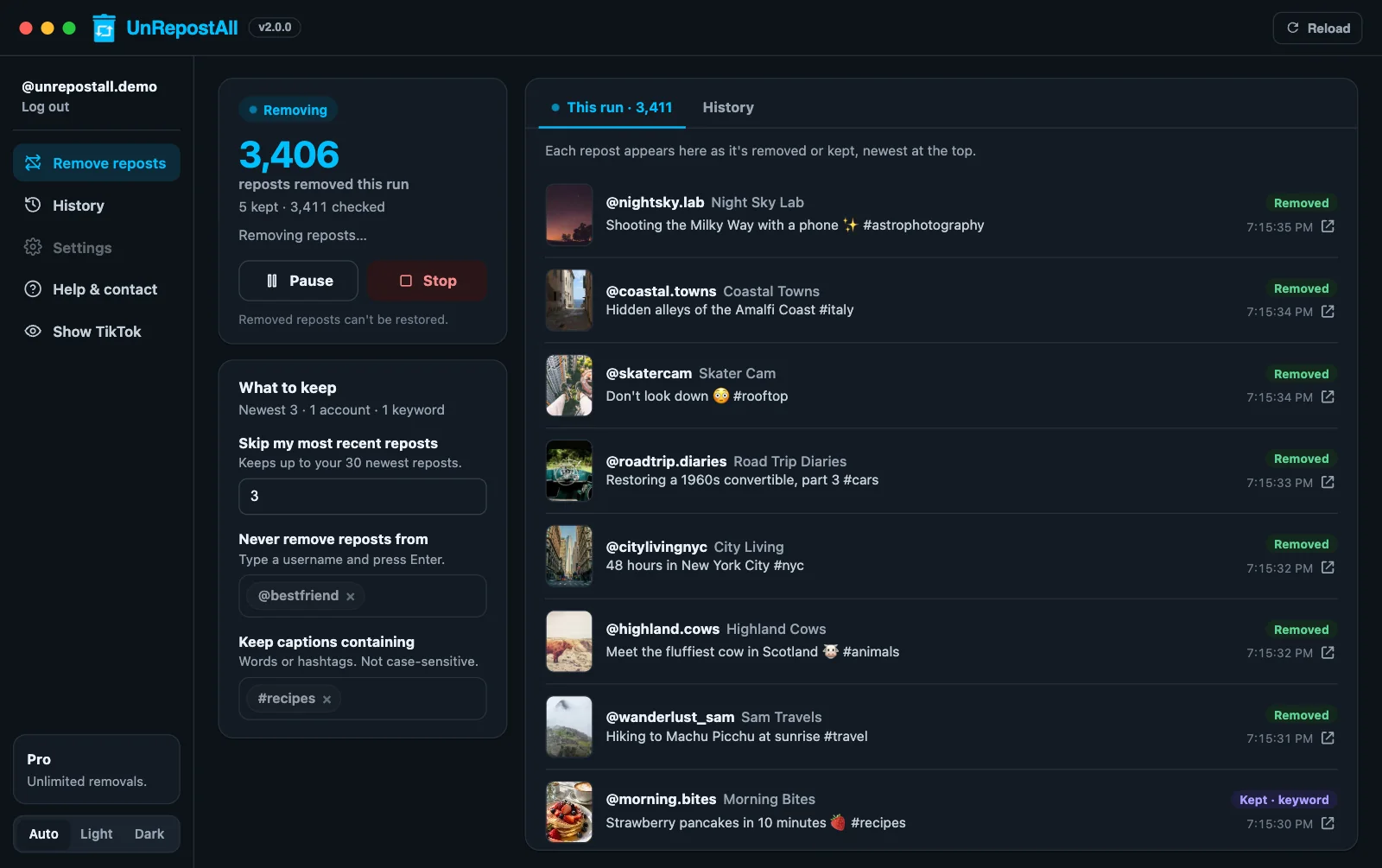
Optional: set What to keep first to skip your newest reposts, certain accounts, or captions with certain words.
Click Start removing, confirm, and UnRepostAll gets to work. Pause, resume, or stop at any time.
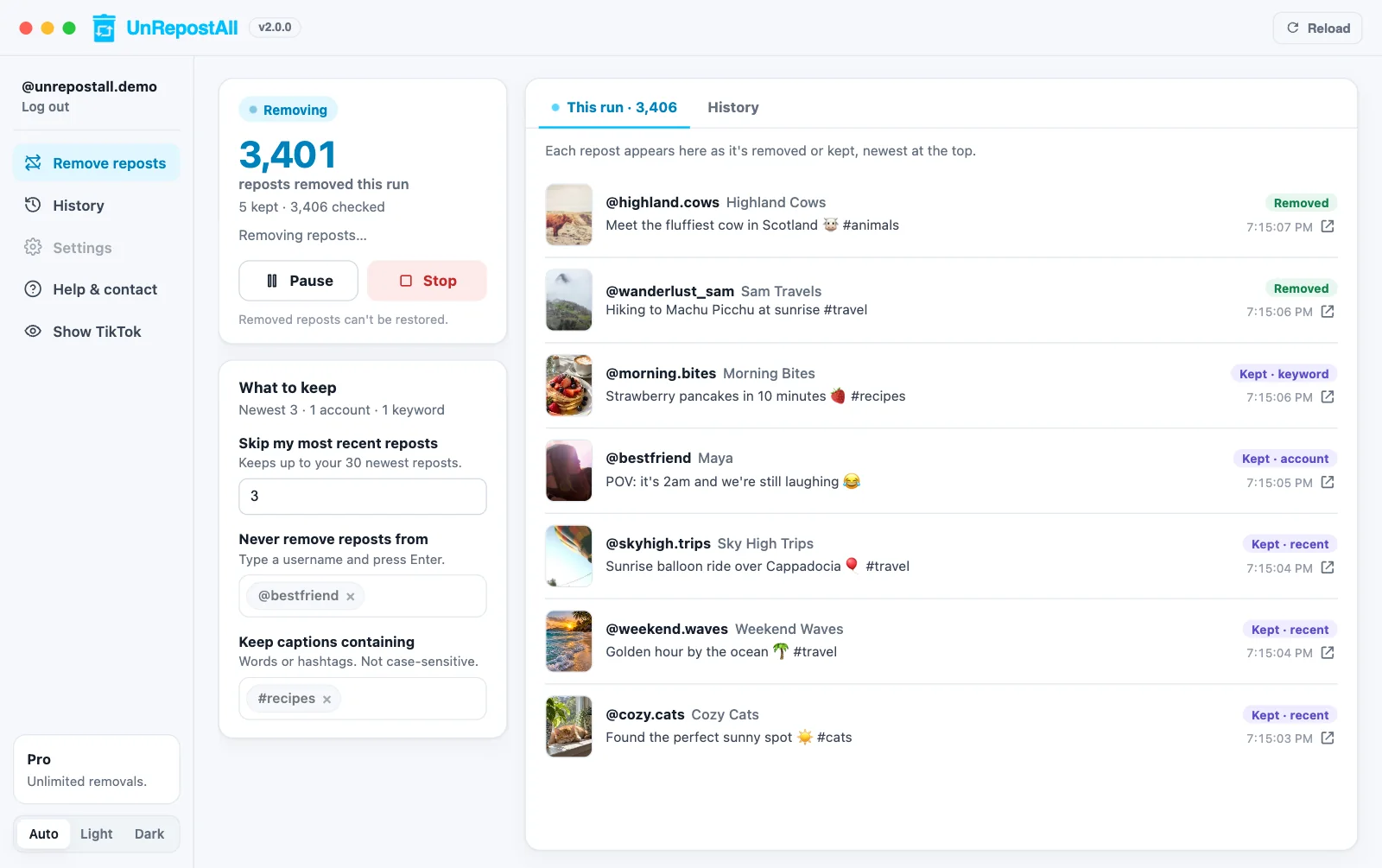
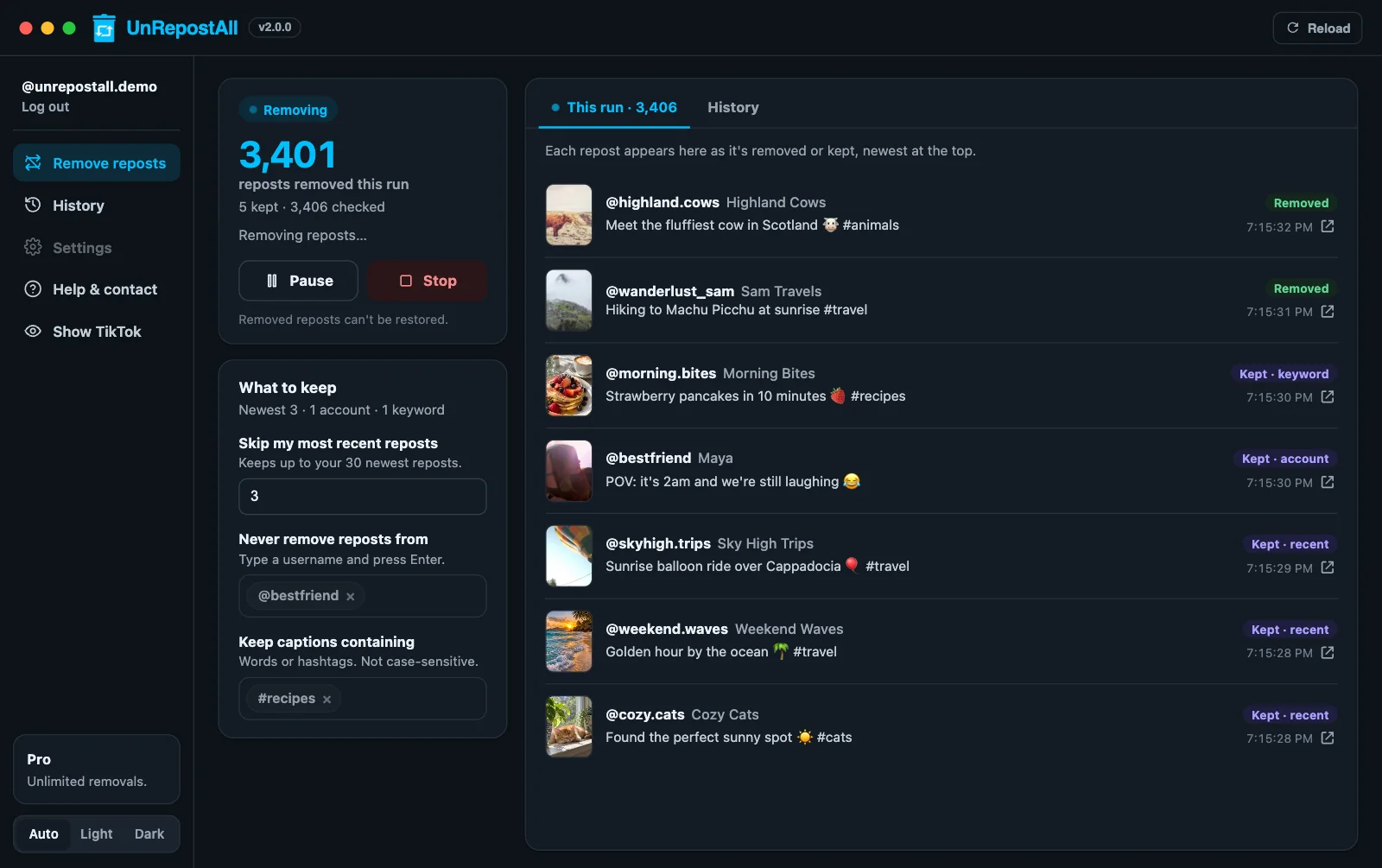
Step 3 Watch it work
Each repost appears in Live activity as it’s removed, with a link to the video. Everything removed is saved in History, where you can search it or export a CSV.
Remove your TikTok reposts with UnRepostAll
Remove all your TikTok reposts with one click on iPhone, Android, Mac, and Windows. Free to try.


Frequently asked questions
Can I make my reposts private but keep my account public?
Only if TikTok offers a reposts privacy setting for your account. Look under Settings and privacy → Privacy. Otherwise, removing reposts is the way to hide them.
Do my followers see what I repost?
They can. TikTok may show a video you reposted in your followers’ feeds, labeled as reposted by you, and it appears in your Reposts tab.
Does removing reposts hide them from people who already saw them?
It removes them from your profile and stops them from being shown as your reposts. It can’t undo views that already happened.